


使用Native.js实现打开页面默认弹出软键盘
先来体验下这个神奇的功能(兼容iOS和Android):

此功能需要在模块权限中配置Native.js
var nativeWebview, imm, InputMethodManager;
var initNativeObjects = function() {
    if (mui.os.android) {
        var main = plus.android.runtimeMainActivity();
        var Context = plus.android.importClass("android.content.Context");
        InputMethodManager = plus.android.importClass("android.view.inputmethod.InputMethodManager");
        imm = main.getSystemService(Context.INPUT_METHOD_SERVICE);
    } else {
        nativeWebview = plus.webview.currentWebview().nativeInstanceObject();
    }
};
var showSoftInput = function() {
    if (mui.os.android) {
        imm.toggleSoftInput(0, InputMethodManager.SHOW_FORCED);
    } else {
        nativeWebview.plusCallMethod({
            "setKeyboardDisplayRequiresUserAction": false
        });
    }
    setTimeout(function() {
       //此处可写具体逻辑设置获取焦点的input
       var inputElem = document.querySelector('input');
              inputElem.focus();
    }, 200);
};
mui.plusReady(function() {
    initNativeObjects();
    showSoftInput();
});
补充更新:
调用plus.webview.create()创建新的webview,会导致当前webview失去焦点,因此可能出现键盘闪一下又消失的情况。
解决方案:将创建webview的代码放到显示键盘之前(initNativeObjects方法之前)。
另外,为了强制当前webview获得焦点,可像如下方式修改showSoftInput方法:
var showSoftInput = function() {
    var nativeWebview = plus.webview.currentWebview().nativeInstanceObject();
    if (mui.os.android) {
        //强制当前webview获得焦点
        plus.android.importClass(nativeWebview);
        nativeWebview.requestFocus();
        imm.toggleSoftInput(0, InputMethodManager.SHOW_FORCED);
    } else {
        nativeWebview.plusCallMethod({
            "setKeyboardDisplayRequiresUserAction": false
        });
    }
    setTimeout(function() {
       //此处可写具体逻辑设置获取焦点的input
       var inputElem = document.querySelector('input');
              inputElem.focus();
    }, 200);
};先来体验下这个神奇的功能(兼容iOS和Android):
此功能需要在模块权限中配置Native.js
var nativeWebview, imm, InputMethodManager;
var initNativeObjects = function() {
    if (mui.os.android) {
        var main = plus.android.runtimeMainActivity();
        var Context = plus.android.importClass("android.content.Context");
        InputMethodManager = plus.android.importClass("android.view.inputmethod.InputMethodManager");
        imm = main.getSystemService(Context.INPUT_METHOD_SERVICE);
    } else {
        nativeWebview = plus.webview.currentWebview().nativeInstanceObject();
    }
};
var showSoftInput = function() {
    if (mui.os.android) {
        imm.toggleSoftInput(0, InputMethodManager.SHOW_FORCED);
    } else {
        nativeWebview.plusCallMethod({
            "setKeyboardDisplayRequiresUserAction": false
        });
    }
    setTimeout(function() {
       //此处可写具体逻辑设置获取焦点的input
       var inputElem = document.querySelector('input');
              inputElem.focus();
    }, 200);
};
mui.plusReady(function() {
    initNativeObjects();
    showSoftInput();
});
补充更新:
调用plus.webview.create()创建新的webview,会导致当前webview失去焦点,因此可能出现键盘闪一下又消失的情况。
解决方案:将创建webview的代码放到显示键盘之前(initNativeObjects方法之前)。
另外,为了强制当前webview获得焦点,可像如下方式修改showSoftInput方法:
var showSoftInput = function() {
    var nativeWebview = plus.webview.currentWebview().nativeInstanceObject();
    if (mui.os.android) {
        //强制当前webview获得焦点
        plus.android.importClass(nativeWebview);
        nativeWebview.requestFocus();
        imm.toggleSoftInput(0, InputMethodManager.SHOW_FORCED);
    } else {
        nativeWebview.plusCallMethod({
            "setKeyboardDisplayRequiresUserAction": false
        });
    }
    setTimeout(function() {
       //此处可写具体逻辑设置获取焦点的input
       var inputElem = document.querySelector('input');
              inputElem.focus();
    }, 200);
};
h5+实时定位问题 setInterval中只执行一次getCurrentPosition
参考问题:http://ask.dcloud.net.cn/question/10078
刚开始学习html5+App 要实现定时发送位置信息功能,看了官方示例如下,确实简单明了
官网示例
<!DOCTYPE html>
<html>****
<head>
<meta charset="utf-8">
<title>Geolocation Example</title>
<script type="text/javascript" >
// 扩展API加载完毕后调用onPlusReady回调函数
document.addEventListener( "plusready", onPlusReady, false );
// 扩展API加载完毕,现在可以正常调用扩展API
function onPlusReady() {
plus.geolocation.getCurrentPosition( function ( p ) {
alert( "Geolocation\nLatitude:" + p.coords.latitude + "\nLongitude:" + p.coords.longitude + "\nAltitude:" + p.coords.altitude );
}, function ( e ) {
alert( "Geolocation error: " + e.message );
} );
}
</script>
</head>
<body >
</body>
</html>
不过问题来了,现在要自动隔段时间就发送一下位置了,采用上面的方法getPosBaidu,加上下面这句,期间可能遇到其他问题plus未定义啊什么的,不过不是关键
setInterval('getPosBaidu()', 10000);
调试结果:
执行了一次getPosBaidu
然后就over了
原因可能是阻塞啊 什么的,具体我也不太懂了,就觉得跟setInterval有关
怎么办?
看了一堆dcloud定位相关问题的贴子,特别混乱。
总结下可能的方法,
1、自己开发5+sdk插件替换getCurrentPosition
2、Native.js 调用本地替换getCurrentPosition
3、换掉setInterval 用别的方法定时触发
4、曲线利用 plus.geolocation.watchPosition
结果当然是1,2太复杂,还没动。
4 方法,看了半天,watchPosition 这个方法也没太懂,继续setInterval 只用plus.geolocation.watchPosition 直接取代getCurrentPosition :开始监视触发一次,然后清楚监视就是一次啦,不过依然没用。
3方法目前算是成功了。
有其他方法的同学,请告知,毕竟这个办法也太曲线了。
html5+ 官方需要继续改进,要加快进度。 控制变量法:自己做到最好,历史才能选择究竟谁才是未来的主流,希望html5+应用火起来。
End。。。
参考问题:http://ask.dcloud.net.cn/question/10078
刚开始学习html5+App 要实现定时发送位置信息功能,看了官方示例如下,确实简单明了
官网示例
<!DOCTYPE html>
<html>****
<head>
<meta charset="utf-8">
<title>Geolocation Example</title>
<script type="text/javascript" >
// 扩展API加载完毕后调用onPlusReady回调函数
document.addEventListener( "plusready", onPlusReady, false );
// 扩展API加载完毕,现在可以正常调用扩展API
function onPlusReady() {
plus.geolocation.getCurrentPosition( function ( p ) {
alert( "Geolocation\nLatitude:" + p.coords.latitude + "\nLongitude:" + p.coords.longitude + "\nAltitude:" + p.coords.altitude );
}, function ( e ) {
alert( "Geolocation error: " + e.message );
} );
}
</script>
</head>
<body >
</body>
</html>
不过问题来了,现在要自动隔段时间就发送一下位置了,采用上面的方法getPosBaidu,加上下面这句,期间可能遇到其他问题plus未定义啊什么的,不过不是关键
setInterval('getPosBaidu()', 10000);
调试结果:
执行了一次getPosBaidu
然后就over了
原因可能是阻塞啊 什么的,具体我也不太懂了,就觉得跟setInterval有关
怎么办?
看了一堆dcloud定位相关问题的贴子,特别混乱。
总结下可能的方法,
1、自己开发5+sdk插件替换getCurrentPosition
2、Native.js 调用本地替换getCurrentPosition
3、换掉setInterval 用别的方法定时触发
4、曲线利用 plus.geolocation.watchPosition
结果当然是1,2太复杂,还没动。
4 方法,看了半天,watchPosition 这个方法也没太懂,继续setInterval 只用plus.geolocation.watchPosition 直接取代getCurrentPosition :开始监视触发一次,然后清楚监视就是一次啦,不过依然没用。
3方法目前算是成功了。
有其他方法的同学,请告知,毕竟这个办法也太曲线了。
html5+ 官方需要继续改进,要加快进度。 控制变量法:自己做到最好,历史才能选择究竟谁才是未来的主流,希望html5+应用火起来。
End。。。

【分享】图片下载本地缓存时间戳显示图片方法
参考文章
http://ask.dcloud.net.cn/article/256
http://ask.dcloud.net.cn/article/397
说明:为了方便,里面使用的图片来源是从上面文章中的源码项目获取的.
说明:参考了上面文章中的思路,然后自己重新写了一个较为完整的图片本地缓存显示工具.
功能
1.第一次显示图片时下载到本地,然后之后如果本地存在缓存(根据url),则显示本地缓存的图片
- 基于plus的storage,对每一个图片的缓存进行控制管理,增加时间戳参数,来控制本地缓存的有效时间
- 将所有的下载任务放入队列中,进行统一下载管理,增加最大并发请求数,防止一次性请求过多损耗性能
- 加入了图片缓存池机制,对于同一个下载路径的图片不会多次下载,而是填入缓存池,下载后统一回调
- 修改了图片本地路径的获取方法,摆脱第三方依赖
- 重构了代码,并入开发框架中
使用方法
 * 外部API:注意,需要显示的图片需要有data-img-localcache这个属性(用来放目标url),dom需要是原生对象
 * 清除所有图片缓存:MobileFrame.ImageUtil.ImageLoaderFactory.clearLoaderImgsCache(successCb,errorCb)
 * 采取本地缓存显示所有图片:MobileFrame.ImageUtil.ImageLoaderFactory.setAllNetImgsWithLocalCache();
 * 清除某一张图片的本地缓存:MobileFrame.ImageUtil.ImageLoaderFactory.clearNetUrlImgCache(src);
 * 显示某一张图片:MobileFrame.ImageUtil.ImageLoaderFactory.setImgWidthLocalCache(dom,src);
源码
/**
* @description 移动开发框架
* @author dailc dailc
* @version 1.0
* @time 2016-01-11 16:57:57
* 功能模块:只依赖于plus系统
* @see http://ask.dcloud.net.cn/people/%E6%92%92%E7%BD%91%E8%A6%81%E8%A7%81%E9%B1%BC
* 图片本地缓存模块********************************
* 1.本地缓存显示图片
* 2.增加storage,增加每一个本地缓存的有效时间戳
* 3.增加自定义设置方法,可以根据不同需求,对参数进行修改
* 4.采用下载队列进行下载管理,增加最大并发请求数,防止一次性请求过多损耗性能
* 5.修改了图片本地路径的获取方法,摆脱第三方依赖
* 6.重构代码
* 外部API:注意,需要显示的图片需要有data-img-localcache这个属性(用来放目标url)
* 清除所有图片缓存:MobileFrame.ImageUtil.ImageLoaderFactory.clearLoaderImgsCache(successCb,errorCb)
* 采取本地缓存显示所有图片:MobileFrame.ImageUtil.ImageLoaderFactory.setAllNetImgsWithLocalCache();
* 清除某一张图片的本地缓存:MobileFrame.ImageUtil.ImageLoaderFactory.clearNetUrlImgCache(src);
* 显示某一张图片:MobileFrame.ImageUtil.ImageLoaderFactory.setImgWidthLocalCache(dom,src);
* 图片本地缓存模块完毕********************************
*/
(function(global) {
/**
* 定义全局函数对象 define出来的
*/
var mapping = {};
/**
* 缓存,正在用到的对象,函数中return 出来的,这样就不需要重复执行函数
*/
var cache = {};
/**
* @description 模块定义
* @param {String} id id
* @param {Function} func 对应的函数对象
*/
global.define = function(id, func) {
mapping[id] = func;
};
/**
* @description 生成模块对象,并采用本地缓存
* @param {String} id
*/
global.require = function(id) {
if (!/\.js$/.test(id)) {
id += '.js';
}
if (cache[id]) {
return cache[id];
} else {
return cache[id] = mapping[id]({});
}
};
/**
* @description 配置全局工具类以及一些需要用到的全局函数
*/
(function() {
global.MobileFrame = {};
/**
* 空函数
*/
MobileFrame.noop = function() {};
/**
* @description each遍历操作
* @param {type} elements
* @param {type} callback
* @returns {global}
*/
MobileFrame.each = function(elements, callback, hasOwnProperty) {
if (!elements) {
return this;
}
if (typeof elements.length === 'number') {
[].every.call(elements, function(el, idx) {
return callback.call(el, idx, el) !== false;
});
} else {
for (var key in elements) {
if (hasOwnProperty) {
if (elements.hasOwnProperty(key)) {
if (callback.call(elements[key], key, elements[key]) === false) return elements;
}
} else {
if (callback.call(elements[key], key, elements[key]) === false) return elements;
}
}
}
return global;
};
/**
* @description plusReady
* @param {Function} callback
* @returns {global} 返回的是global
*/
MobileFrame.plusReady = function(callback) {
if (window.plus) {
setTimeout(function() { //解决callback与plusready事件的执行时机问题(典型案例:showWaiting,closeWaiting)
callback();
}, 0);
} else {
document.addEventListener("plusready", function() {
callback();
}, false);
}
return global;
};
/**
* @description 得到相对路径对应的key,这个key可以使缓存池的或者是本地缓存键值
* 主要作用是去除非法字符
* @param {String} relativePath
*/
MobileFrame.getRelativePathKey = function(relativePath) {
var finalKey =
// relativePath.replace('\/', '').replace('.', '').replace('\/', '')
// .replace('_download', '').replace('jpg', '');
relativePath.replace(/[&\|\\\*^%$#@\-]/g, "");
return finalKey;
};
/**
* @description 更改url类型,去除cache,因为cache会造成一些困扰
* @param {String} url 传入的url
*/
MobileFrame.changImgUrlTypeNoCache = function(url) {
url = url || '';
if (url.indexOf('?') != -1) {
url += '&timeRandKey=' + Math.random();
} else {
url += '?timeRandKey=' + Math.random();
}
return url;
};
/**
* @description 删除指定路径的文件
* @param {String} relativePath 绝对路径或相对路径例如: _downloads/imgs/test.jpg
* @param {Function} successCallback 删除成功回调
* @param {Function} errorCallback 失败回调
*/
MobileFrame.delFile = function(relativePath, successCallback, errorCallback) {
if (!relativePath) {
return;
}
MobileFrame.plusReady(function() {
plus.io.resolveLocalFileSystemURL(relativePath, function(entry) {
entry.remove(function(entry) {
if (successCallback && typeof(successCallback) == 'function') {
successCallback(true);
}
}, function(e) {
if (errorCallback && typeof(errorCallback) == 'function') {
errorCallback('删除文件失败!');
}
});
}, function() {
if (errorCallback && typeof(errorCallback) == 'function') {
errorCallback('打开文件路径失败!');
}
});
});
};
/**
* @description 判断网络状态
*/
function GetNetWorkState() {
var NetStateStr = '未知';
var types = {};
types[plus.networkinfo.CONNECTION_UNKNOW] = "未知";
types[plus.networkinfo.CONNECTION_NONE] = "未连接网络";
types[plus.networkinfo.CONNECTION_ETHERNET] = "有线网络";
types[plus.networkinfo.CONNECTION_WIFI] = "WiFi网络";
types[plus.networkinfo.CONNECTION_CELL2G] = "2G蜂窝网络";
types[plus.networkinfo.CONNECTION_CELL3G] = "3G蜂窝网络";
types[plus.networkinfo.CONNECTION_CELL4G] = "4G蜂窝网络";
NetStateStr = types[plus.networkinfo.getCurrentType()];
return NetStateStr;
};
/**
* @description 判断是否有网络
*/
MobileFrame.IsNetWorkCanUse = function() {
var IsCanUseNetWork = false;
if (GetNetWorkState() == '未知' || GetNetWorkState() == '未连接网络') {
IsCanUseNetWork = false;
} else {
IsCanUseNetWork = true;
}
return IsCanUseNetWork;
};
})();
/**
* @description 定义模块功能-图片工具类
*/
define('scripts/Core/ImageUtil.js', function(exports) {
/**
* @description 图片加载工厂,包含图片加载方法
* 例如:时间戳控制缓存,下载队列批次下载,默认图片,下载loading图片,下载失败图片
* 注意相对路径在Android:/sdcard/Android/data/io.dcloud.HBuilder/.HBuilder/...
* iOS:/Library/Pandora/...
*/
(function(ImgLoaderFactory) {
/**
* 默认的options
*/
var defaultSettingOptions = {
//默认的图片缓存目录-存到应用的downloads/imgs下
'imgStoragePath': "_downloads/imgs/",
//默认图片的基座路径
'defaultImgBase': '../../img/mobileFrame/',
//loading图片的名称
'loadingImgName': 'img_loading.jpg',
//error图片名称
'errorImgName': 'img_error.jpg',
//图片缓存的时间戳,毫秒单位,默认为1天
'imgsTimeStamp': 1000 * 60 * 60 * 24 * 1,
//同时最多的downloader 并发下载数目,默认为3个
'concurrentDownloadCount': 3,
//单个下载任务最大的请求时间,防止一些机型上无法触发错误回调,单位毫秒,默认10秒
'maxTimeSingleDownloadTaskSpend': 1000 * 10
};
//默认的下载图片临时变量
var defaultLoadingImg = defaultSettingOptions['defaultImgBase'] + defaultSettingOptions['loadingImgName'];
//默认的显示图片临时变量
var defaultImg = defaultSettingOptions['defaultImgBase'] + defaultSettingOptions['errorImgName'];
/**
* 图片缓存的session头部
*/
var imageSessionKey_header = 'imageSessionKey_util_imgs_';
/**
* 图片缓存的session的管理者
*/
var imageSessionManagerKey = 'imageSessionKey_util_Manager';
/**
* 图片缓存池,用来解决多张图片并发请求问题
* 默认是空的,当有多张图片是同一个请求时,缓存池子中会有数据
* 格式 {'url1':[dom1,dom2]}
*/
var requestImgsPool = {};
/**
* 并发下载任务,包括下载队列,处理最大并发数下载
*/
var concurrentDownloadTask = {
//任务池-还没有下载的任务
Queue: [],
//当前正在下载的任务数量
CurrentTaskCount: 0
};
/**
* 当前的任务队列,包含任务的名称,以及时间戳-用来控制最大的超时时间,防止不能正常触发回调
* 包含:
* taskObj,timeBegin
* 格式:{url1:{task1,time1}}
*/
var currentDownloadTasks = {};
/**
* @description 将对应的图片缓存键值添加进入图片缓存管理中
* @param {String} key 图片路径对应的key
*/
function addImageSessionKeyToManager(key) {
//获取管理者
var manager = plus.storage.getItem(imageSessionManagerKey);
if (manager == null) {
//如果以前的缓存为空,生成缓存
manager = [];
} else {
try {
manager = JSON.parse(manager);
} catch (e) {}
}
if (manager.indexOf(key) == -1) {
manager.push(key);
}
plus.storage.setItem(imageSessionManagerKey, JSON.stringify(manager));
};
/**
* @description 从缓存管理中移除相应的图片缓存
* @param {String} key 图片路径对应的key
*/
function removeImageSessionKeyFromManager(key) {
//获取管理者
var manager = plus.storage.getItem(imageSessionManagerKey);
if (manager == null) {
//这时候肯定没有离线缓存
return;
}
try {
manager = JSON.parse(manager);
} catch (e) {}
var index = -1;
for (var i = 0; i < manager.length || 0; i++) {
if (manager[i] == key) {
index = i;
}
}
if (index != -1) {
//删除对应的index位置
manager.splice(index, 1);
//重新存储
plus.storage.setItem(imageSessionManagerKey, JSON.stringify(manager));
}
};
/**
* 设置图片缓存key
* @param {String} url
* @param {JSON} value 存进去的是图片相关的所有属性,包括时间戳,本地路径等
*/
function setImageSessionItem(url, value) {
if (url == null) {
return;
}
//然后添加进入缓存管理者中
addImageSessionKeyToManager(url);
url = imageSessionKey_header + MobileFrame.getRelativePathKey(url);
value = (value != null) ? value : '';
value = (typeof(value) == 'string') ? value : JSON.stringify(value);
plus.storage.setItem(url, value);
};
/**
* 获取图片缓存key
* @param {String} url
* @return {JSON} item 返回的是一个json对象,包括图片相关的所有属性,包括时间戳,本地路径等
* @example 包含属性:time localPath
*/
function getImageSessionItem(url) {
if (url == null) {
return null;
}
//去除非法字符
url = imageSessionKey_header + MobileFrame.getRelativePathKey(url);
var item = plus.storage.getItem(url);
try {
if (item != null) {
item = JSON.parse(item);
}
} catch (e) {}
return item;
};
/**
* 移除图片缓存key
* @param {String} url
*/
function removeImageSessionItem(url) {
if (url == null) {
return null;
}
removeImageSessionKeyFromManager(url);
//去除非法字符
url = imageSessionKey_header + MobileFrame.getRelativePathKey(url);
var items = plus.storage.removeItem(url);
};
/**
* @description 设置图片的src地址,根据一个url,为所有需要的图片赋值
* @param {HTMLElement} $img 图片的dom,这里为原生dom对象
* @param {String} srcUrl 图片的路径
* @param {String} relativePath 相对路径,用来判断缓存池的
*/
function setImgSrc($img, srcUrl, relativePath) {
if (!srcUrl) {
return;
}
setImgSrcByDom($img, srcUrl);
//如果缓存池子中存在图片
if (!relativePath) {
return;
}
var relativePathKey = MobileFrame.getRelativePathKey(relativePath);
if (requestImgsPool && requestImgsPool[relativePathKey]) {
var imgsData = requestImgsPool[relativePathKey];
//如果是数组
if (Array.isArray(imgsData)) {
for (var i = 0; i < imgsData.length; i++) {
setImgSrcByDom(imgsData[i], srcUrl);
}
} else {
//单条数据--单个dom对象
setImgSrcByDom(imgsData, srcUrl);
}
if (srcUrl != defaultLoadingImg) {
//如果不是loading图片就清空
//清空图片池子中的该条键值
requestImgsPool[relativePathKey] = null;
}
}
};
/**
* @description 设置图片的src地址,一个dom和一个 src一一对应
* @param {HTMLElement} $img 图片的dom,原生dom对象
* @param {String} srcUrl 图片的路径
*/
function setImgSrcByDom($img, srcUrl) {
if (!$img || !($img instanceof HTMLElement)) {
//console.log('该dom不是原生对象,url:' + srcUrl);
return;
}
//暂时去除loading图片的独特样式
// if (srcUrl == defaultLoadingImg) {
// //默认的loading图片,修改css
// $img.style.maxWidth = '30px';
// $img.style.maxHeight = '30px';
// } else {
// //恢复普通高度
// $img.style.maxWidth = '100%';
// $img.style.maxHeight = '100%';
// }
srcUrl = MobileFrame.changImgUrlTypeNoCache(srcUrl);
$img.setAttribute('src', srcUrl);
};
/**
* @description 移除所有的图片缓存键
*/
function clearAllImageSessionKey() {
MobileFrame.plusReady(function() {
var manager = plus.storage.getItem(imageSessionManagerKey);
if (manager == null) {
//这时候肯定没有离线缓存
return;
}
try {
manager = JSON.parse(manager);
} catch (e) {}
if (Array.isArray(manager)) {
for (var i = 0; i < manager.length; i++) {
removeImageSessionItem(manager[i]);
}
}
});
};
/**
* @description 设置图片加载工具的一些基本参数
* @param {JSON} options 参数
* @example 参数没传代表使用默认值,包括:
* imgStoragePath,string型,图片的默认路径
* defaultImgBase,string型,默认图片的基座路径
*/
ImgLoaderFactory.setOptions = function(options) {
if (!options) {
return;
}
//设置参数
for (var key in defaultSettingOptions) {
//如果设置的是有效的
if (options[key] != null) {
defaultSettingOptions[key] = options[key];
}
}
//默认的下载图片临时变量
defaultLoadingImg = defaultSettingOptions['defaultImgBase'] + defaultSettingOptions['loadingImgName'];
//默认的显示图片临时变量
defaultImg = defaultSettingOptions['defaultImgBase'] + defaultSettingOptions['errorImgName'];
};
/**
* @description 清除图片加载工厂的所有图片缓存
* @param {Function} successCallback 成功回调
* @param {Function} errorCallback 失败回调
*/
ImgLoaderFactory.clearLoaderImgsCache = function(successCallback, errorCallback) {
MobileFrame.plusReady(function() {
//遍历目录文件夹下的所有文件,然后删除
var tmpUrl = plus.io.convertLocalFileSystemURL(defaultSettingOptions['imgStoragePath']);
//需要手动加上 file://
tmpUrl = 'file://' + tmpUrl;
//同时清除所有的缓存键值
clearAllImageSessionKey();
plus.io.resolveLocalFileSystemURL(tmpUrl, function(entry) {
entry.removeRecursively(function() {
if (successCallback && typeof(successCallback) == 'function') {
successCallback('清除图片缓存成功!');
}
}, function() {
if (errorCallback && typeof(errorCallback) == 'function') {
errorCallback('清除图片缓存失败!');
}
});
}, function(e) {
if (errorCallback && typeof(errorCallback) == 'function') {
errorCallback('打开图片缓存目录失败!');
}
});
});
};
/**
* @description 从一个网络URL中,获取本地图片缓存相对路径
* @param {String} loadUrl 图片的网络路径,如果为null,则返回一个null
* @return {String} 返回路径或者是 ***outOfTime***表示缓存时间戳过去
* @example 获取相对路径可以有很多种方法
* 比如可以用md5将url加密,或者其它字符串操作等等
* 我这里也是根据项目而进行自适应的
*/
ImgLoaderFactory.getRelativePathFromLoadUrl = function(loadUrl) {
if (loadUrl == null) return null;
//如果loadUrl以../开头,代表是相对路径,采用本地相对路径,这里就直接返回本地路径,这样就是直接赋值了
if (loadUrl.substring(0, 5).indexOf('../') != -1) {
return loadUrl;
}
//图片缓存如果存在,判断是否过期,默认为''
var isOutOfTimeHeader = '';
//如果存在本地缓存,并且没有过期,采用本地缓存中的图片
var loacalImgSessionItem = getImageSessionItem(loadUrl);
if (loacalImgSessionItem != null) {
//判断是否过期 time localPath
if (loacalImgSessionItem.time) {
loacalImgSessionItem.time = parseInt(loacalImgSessionItem.time, 10);
if ((new Date()).valueOf() - loacalImgSessionItem.time > defaultSettingOptions['imgsTimeStamp']) {
//console.log('当前缓存已经过期')
//返回一个特殊字符,代表过期
isOutOfTimeHeader = '***outOfTime***';
} else {
//console.log('缓存未过期');
}
}
if (loacalImgSessionItem.localPath) {
return loacalImgSessionItem.localPath;
}
}
//获取图片后缀,如果没有获取到后缀,默认是jpg
var imgSuffix = loadUrl.substring(loadUrl.lastIndexOf(".") + 1, loadUrl.length);
if (
imgSuffix.toLocaleLowerCase() != ("jpg") &&
imgSuffix.toLocaleLowerCase() != ("jpeg") &&
imgSuffix.toLocaleLowerCase() != ("png") &&
imgSuffix.toLocaleLowerCase() != ("bmp") &&
imgSuffix.toLocaleLowerCase() != ("svg") &&
imgSuffix.toLocaleLowerCase() != ("gif")
) {
//如果后缀没有包含以上图片,将后缀改为jpg
imgSuffix = 'jpg';
}
//更换存储方式,变为将整个路径存储下来,然后去除非法字符
var regIllegal = /[&\|\\\*^%$#@\-:.?\/=!]/g;
//获取图片名字
var imgName = loadUrl.replace(regIllegal, '');
//最终的名字
var filename = imgName + '.' + imgSuffix;
//console.log('loadurl:'+loadUrl+',fileName:'+filename);
var relativePath = defaultSettingOptions['imgStoragePath'] + filename;
setImageSessionItem(loadUrl, {
'localPath': relativePath,
'time': (new Date()).valueOf()
});
//将是否过期标识传出
return isOutOfTimeHeader + relativePath;
};
/**
* @description 删除某一张网络图片的本地缓存,同时也会删除缓存键值
*/
ImgLoaderFactory.clearNetUrlImgCache = function(netImgUrl, successCallback, errorCallback) {
MobileFrame.plusReady(function() {
//删除该键值对应的缓存
removeImageSessionItem(netImgUrl);
MobileFrame.delFile(ImgLoaderFactory.getRelativePathFromLoadUrl(netImgUrl), successCallback, errorCallback);
});
};
/**
* @description 给指定的图片dom 设置本地图片属性
* @param {HTMLElement} $img 目标图片dom,这里为原生的dom对象
* @param {String} relativePath 本地图片路径
*/
function setImgFromLocalCache($img, relativePath) {
/*例如:
* 本地相对路径("downloads/imgs/logo.jpg")转成SD卡绝对路径
* 例如相对路径:downloads/imgs/logo.jpg
* ("/storage/emulated/0/Android/data/io.dcloud.HBuilder/.HBuilder/downloads/imgs/logo.jpg");
* */
if (!relativePath) {
return;
}
MobileFrame.plusReady(function() {
var sd_path = plus.io.convertLocalFileSystemURL(relativePath);
setImgSrc($img, sd_path, relativePath);
});
};
/**
* @description 通过本地缓存的方法显示网络图片
* @param {HTMLElement} $img 原生dom对象
* @param {String} loadUrl loadurl
*/
ImgLoaderFactory.setImgWidthLocalCache = function($img, loadUrl) {
if ($img == null || loadUrl == null) return;
MobileFrame.plusReady(function() {
var relativePath = ImgLoaderFactory.getRelativePathFromLoadUrl(loadUrl);
//判断需不需要将路径进行编码,如果是中文路径,需要编码后才能下载
var regChinese = /[\u4E00-\u9FA5]/g;
var tmpLoadUrl = loadUrl.replace(regChinese, 'chineseRemoveAfter');
if (tmpLoadUrl.indexOf('chineseRemoveAfter') != -1) {
loadUrl = encodeURI(loadUrl);
}
//判断是否已经缓存过期
var isCacheOutOfTime = false;
if (relativePath.indexOf('***outOfTime***') != -1) {
relativePath.replace('***outOfTime***', '');
isCacheOutOfTime = true;
}
if (relativePath == 'default.jpg') {
//设置默认图片
setImgSrc($img, defaultImg);
} else {
if (isCacheOutOfTime == false) {
//检查图片是否已存在
plus.io.resolveLocalFileSystemURL(relativePath, function(entry) {
//如果文件存在,则直接设置本地图片
setImgFromLocalCache($img, relativePath);
}, function(e) {
readyToGetNetImg($img, loadUrl, relativePath);
});
} else {
//否则,本地缓存已经过期,直接网络获取
readyToGetNetImg($img, loadUrl, relativePath);
}
}
});
};
/**
* @description 准备通过网络获取图片
* @param {HTMLElement} $img 原生dom对象
* @param {String} loadUrl loadurl
* @param {String} relativePath 本地相对路径
*/
function readyToGetNetImg($img, loadUrl, relativePath) {
//如果文件不存在,上网下载
if (MobileFrame.IsNetWorkCanUse() == true) {
//添加进入图片缓存池中
var relativePathKey = MobileFrame.getRelativePathKey(relativePath);
if (requestImgsPool && requestImgsPool[relativePathKey] && Array.isArray(requestImgsPool[relativePathKey])) {
//如果已经存在该条图片缓存池,代表这条资源已经进行请求了,只需要填进响应池子即可
//console.log('已经存在缓存池:'+loadUrl);
requestImgsPool[relativePathKey].push($img);
//设置一张加载中图片,这只是假象,其实并没有下载
setImgSrc($img, defaultLoadingImg);
return;
} else {
//新建缓存池
//console.log('新建缓存池:'+loadUrl);
requestImgsPool[relativePathKey] = [];
requestImgsPool[relativePathKey].push($img);
}
//如果网络状态能用,联网下载图片
setImgFromNet($img, loadUrl, relativePath);
} else {
//采用本地默认图片
setImgSrc($img, defaultImg);
}
};
/**
* @description 从网络下载图片,并给指定的img dom赋值
* @param {HTMLElement} $img 目标img 原生dom
* @param {String} loadUrl 网络图片路径
* @param {String} relativePath 图片下载后的本地路径,如果不指定,采用默认值 在_downloads/imgs/下
*/
function setImgFromNet($img, loadUrl, relativePath) {
relativePath = (typeof(relativePath) == 'string' && relativePath != '') ? relativePath : ImgLoaderFactory.getRelativePathFromLoadUrl(loadUrl);
//下载参数
var options = {
filename: relativePath,
timeout: 3,
retryInterval: 3
};
//解决ios的网络缓存问题
loadUrl = MobileFrame.changImgUrlTypeNoCache(loadUrl);
//1.将图片 设为默认的下载图片
setImgSrc($img, defaultLoadingImg);
//2.创建下载任务
var dtask = plus.downloader.createDownload(loadUrl,
options,
function(d, status) {
if (status == 200) {
//下载成功
//console.log('绝对路径:'+d.filename);
//这里传入的是相对路径,方便缓存显示
setImgFromLocalCache($img, relativePath);
} else {
//下载失败,需删除本地临时文件,否则下次进来时会检查到图片已存在
//console.log("下载失败=" + status + "==" + relativePath);
//dtask.abort();//文档描述:取消下载,删除临时文件;(但经测试临时文件没有删除,故使用delFile()方法删除);
if (relativePath != null) {
MobileFrame.delFile(relativePath);
}
setImgSrc($img, defaultImg);
}
//下载完成,当前任务数-1,并重新检查下载队列
concurrentDownloadTask['CurrentTaskCount']--;
//下载完成,从当前下载队列中去除
currentDownloadTasks[dtask.url] = null;
executeDownloadTasks();
});
//3.启动下载任务,添加进入下载队列中
concurrentDownloadTask['Queue'].push(dtask);
//执行并发下载队列
executeDownloadTasks();
};
/**
* @description 执行下载任务,通过队列中一个一个的进行
*/
function executeDownloadTasks() {
//console.log('检查下载队列');
//先检查是否存在任务超时的
for (var taskItem in currentDownloadTasks) {
if (currentDownloadTasks[taskItem] &&
currentDownloadTasks[taskItem].timeBegin && (new Date()).valueOf() - currentDownloadTasks[taskItem].timeBegin > defaultSettingOptions['maxTimeSingleDownloadTaskSpend']) {
//如果当前下载人已经超时,并且没有自动触发回调
//终止任务下载
currentDownloadTasks[taskItem].taskObj && currentDownloadTasks[taskItem].taskObj.abort&¤tDownloadTasks[taskItem].taskObj.abort();
concurrentDownloadTask['CurrentTaskCount']--;
//从当前任务队列中去除
currentDownloadTasks[taskItem] = null;
//console.log('存在超时的任务,手动剔除');
}
}
//如果当前下载任务小于并发下载数
if (concurrentDownloadTask['CurrentTaskCount'] < defaultSettingOptions['concurrentDownloadCount']) {
if (concurrentDownloadTask['Queue'].length > 0) {
//开启一个下载任务
var nowTask = concurrentDownloadTask['Queue'].shift();
nowTask.start()
//当前任务数++
concurrentDownloadTask['CurrentTaskCount']++;
currentDownloadTasks[nowTask.url] = {
taskObj: nowTask,
timeBegin: (new Date()).valueOf()
}
//console.log('添加一个下载任务');
}else{
//console.log('已经没有了下载任务');
}
}else{
//console.log('已经达到最大下载数量,延迟下载');
}
};
/**
* @description 设置页面中的所有图片(本地缓存方式)
* 注意,只有存在data-img-localcache 标签的图片才会有效果
*/
ImgLoaderFactory.setAllNetImgsWithLocalCache = function() {
//获取页面中所有的图片
var imgs = document.querySelectorAll('img');
MobileFrame.each(imgs, function(key, value) {
var src = this.getAttribute('data-img-localcache');
//console.log('显示图片:' + src);
if (src != null && src != '') {
ImgLoaderFactory.setImgWidthLocalCache(this, src);
}
});
};
})(exports.ImageLoaderFactory = {});
return exports;
});
/**
* 生成模块
*/
{
MobileFrame.ImageUtil = require('scripts/Core/ImageUtil.js');
}
})(this);注
为了方便,就直接将源码都并入了自己写的框架类中了,
另外感谢@wenju 提供的思路!
欢迎大家留言,讨论!
源码见附件
参考文章
http://ask.dcloud.net.cn/article/256
http://ask.dcloud.net.cn/article/397
说明:为了方便,里面使用的图片来源是从上面文章中的源码项目获取的.
说明:参考了上面文章中的思路,然后自己重新写了一个较为完整的图片本地缓存显示工具.
功能
1.第一次显示图片时下载到本地,然后之后如果本地存在缓存(根据url),则显示本地缓存的图片
- 基于plus的storage,对每一个图片的缓存进行控制管理,增加时间戳参数,来控制本地缓存的有效时间
- 将所有的下载任务放入队列中,进行统一下载管理,增加最大并发请求数,防止一次性请求过多损耗性能
- 加入了图片缓存池机制,对于同一个下载路径的图片不会多次下载,而是填入缓存池,下载后统一回调
- 修改了图片本地路径的获取方法,摆脱第三方依赖
- 重构了代码,并入开发框架中
使用方法
 * 外部API:注意,需要显示的图片需要有data-img-localcache这个属性(用来放目标url),dom需要是原生对象
 * 清除所有图片缓存:MobileFrame.ImageUtil.ImageLoaderFactory.clearLoaderImgsCache(successCb,errorCb)
 * 采取本地缓存显示所有图片:MobileFrame.ImageUtil.ImageLoaderFactory.setAllNetImgsWithLocalCache();
 * 清除某一张图片的本地缓存:MobileFrame.ImageUtil.ImageLoaderFactory.clearNetUrlImgCache(src);
 * 显示某一张图片:MobileFrame.ImageUtil.ImageLoaderFactory.setImgWidthLocalCache(dom,src);
源码
/**
* @description 移动开发框架
* @author dailc dailc
* @version 1.0
* @time 2016-01-11 16:57:57
* 功能模块:只依赖于plus系统
* @see http://ask.dcloud.net.cn/people/%E6%92%92%E7%BD%91%E8%A6%81%E8%A7%81%E9%B1%BC
* 图片本地缓存模块********************************
* 1.本地缓存显示图片
* 2.增加storage,增加每一个本地缓存的有效时间戳
* 3.增加自定义设置方法,可以根据不同需求,对参数进行修改
* 4.采用下载队列进行下载管理,增加最大并发请求数,防止一次性请求过多损耗性能
* 5.修改了图片本地路径的获取方法,摆脱第三方依赖
* 6.重构代码
* 外部API:注意,需要显示的图片需要有data-img-localcache这个属性(用来放目标url)
* 清除所有图片缓存:MobileFrame.ImageUtil.ImageLoaderFactory.clearLoaderImgsCache(successCb,errorCb)
* 采取本地缓存显示所有图片:MobileFrame.ImageUtil.ImageLoaderFactory.setAllNetImgsWithLocalCache();
* 清除某一张图片的本地缓存:MobileFrame.ImageUtil.ImageLoaderFactory.clearNetUrlImgCache(src);
* 显示某一张图片:MobileFrame.ImageUtil.ImageLoaderFactory.setImgWidthLocalCache(dom,src);
* 图片本地缓存模块完毕********************************
*/
(function(global) {
/**
* 定义全局函数对象 define出来的
*/
var mapping = {};
/**
* 缓存,正在用到的对象,函数中return 出来的,这样就不需要重复执行函数
*/
var cache = {};
/**
* @description 模块定义
* @param {String} id id
* @param {Function} func 对应的函数对象
*/
global.define = function(id, func) {
mapping[id] = func;
};
/**
* @description 生成模块对象,并采用本地缓存
* @param {String} id
*/
global.require = function(id) {
if (!/\.js$/.test(id)) {
id += '.js';
}
if (cache[id]) {
return cache[id];
} else {
return cache[id] = mapping[id]({});
}
};
/**
* @description 配置全局工具类以及一些需要用到的全局函数
*/
(function() {
global.MobileFrame = {};
/**
* 空函数
*/
MobileFrame.noop = function() {};
/**
* @description each遍历操作
* @param {type} elements
* @param {type} callback
* @returns {global}
*/
MobileFrame.each = function(elements, callback, hasOwnProperty) {
if (!elements) {
return this;
}
if (typeof elements.length === 'number') {
[].every.call(elements, function(el, idx) {
return callback.call(el, idx, el) !== false;
});
} else {
for (var key in elements) {
if (hasOwnProperty) {
if (elements.hasOwnProperty(key)) {
if (callback.call(elements[key], key, elements[key]) === false) return elements;
}
} else {
if (callback.call(elements[key], key, elements[key]) === false) return elements;
}
}
}
return global;
};
/**
* @description plusReady
* @param {Function} callback
* @returns {global} 返回的是global
*/
MobileFrame.plusReady = function(callback) {
if (window.plus) {
setTimeout(function() { //解决callback与plusready事件的执行时机问题(典型案例:showWaiting,closeWaiting)
callback();
}, 0);
} else {
document.addEventListener("plusready", function() {
callback();
}, false);
}
return global;
};
/**
* @description 得到相对路径对应的key,这个key可以使缓存池的或者是本地缓存键值
* 主要作用是去除非法字符
* @param {String} relativePath
*/
MobileFrame.getRelativePathKey = function(relativePath) {
var finalKey =
// relativePath.replace('\/', '').replace('.', '').replace('\/', '')
// .replace('_download', '').replace('jpg', '');
relativePath.replace(/[&\|\\\*^%$#@\-]/g, "");
return finalKey;
};
/**
* @description 更改url类型,去除cache,因为cache会造成一些困扰
* @param {String} url 传入的url
*/
MobileFrame.changImgUrlTypeNoCache = function(url) {
url = url || '';
if (url.indexOf('?') != -1) {
url += '&timeRandKey=' + Math.random();
} else {
url += '?timeRandKey=' + Math.random();
}
return url;
};
/**
* @description 删除指定路径的文件
* @param {String} relativePath 绝对路径或相对路径例如: _downloads/imgs/test.jpg
* @param {Function} successCallback 删除成功回调
* @param {Function} errorCallback 失败回调
*/
MobileFrame.delFile = function(relativePath, successCallback, errorCallback) {
if (!relativePath) {
return;
}
MobileFrame.plusReady(function() {
plus.io.resolveLocalFileSystemURL(relativePath, function(entry) {
entry.remove(function(entry) {
if (successCallback && typeof(successCallback) == 'function') {
successCallback(true);
}
}, function(e) {
if (errorCallback && typeof(errorCallback) == 'function') {
errorCallback('删除文件失败!');
}
});
}, function() {
if (errorCallback && typeof(errorCallback) == 'function') {
errorCallback('打开文件路径失败!');
}
});
});
};
/**
* @description 判断网络状态
*/
function GetNetWorkState() {
var NetStateStr = '未知';
var types = {};
types[plus.networkinfo.CONNECTION_UNKNOW] = "未知";
types[plus.networkinfo.CONNECTION_NONE] = "未连接网络";
types[plus.networkinfo.CONNECTION_ETHERNET] = "有线网络";
types[plus.networkinfo.CONNECTION_WIFI] = "WiFi网络";
types[plus.networkinfo.CONNECTION_CELL2G] = "2G蜂窝网络";
types[plus.networkinfo.CONNECTION_CELL3G] = "3G蜂窝网络";
types[plus.networkinfo.CONNECTION_CELL4G] = "4G蜂窝网络";
NetStateStr = types[plus.networkinfo.getCurrentType()];
return NetStateStr;
};
/**
* @description 判断是否有网络
*/
MobileFrame.IsNetWorkCanUse = function() {
var IsCanUseNetWork = false;
if (GetNetWorkState() == '未知' || GetNetWorkState() == '未连接网络') {
IsCanUseNetWork = false;
} else {
IsCanUseNetWork = true;
}
return IsCanUseNetWork;
};
})();
/**
* @description 定义模块功能-图片工具类
*/
define('scripts/Core/ImageUtil.js', function(exports) {
/**
* @description 图片加载工厂,包含图片加载方法
* 例如:时间戳控制缓存,下载队列批次下载,默认图片,下载loading图片,下载失败图片
* 注意相对路径在Android:/sdcard/Android/data/io.dcloud.HBuilder/.HBuilder/...
* iOS:/Library/Pandora/...
*/
(function(ImgLoaderFactory) {
/**
* 默认的options
*/
var defaultSettingOptions = {
//默认的图片缓存目录-存到应用的downloads/imgs下
'imgStoragePath': "_downloads/imgs/",
//默认图片的基座路径
'defaultImgBase': '../../img/mobileFrame/',
//loading图片的名称
'loadingImgName': 'img_loading.jpg',
//error图片名称
'errorImgName': 'img_error.jpg',
//图片缓存的时间戳,毫秒单位,默认为1天
'imgsTimeStamp': 1000 * 60 * 60 * 24 * 1,
//同时最多的downloader 并发下载数目,默认为3个
'concurrentDownloadCount': 3,
//单个下载任务最大的请求时间,防止一些机型上无法触发错误回调,单位毫秒,默认10秒
'maxTimeSingleDownloadTaskSpend': 1000 * 10
};
//默认的下载图片临时变量
var defaultLoadingImg = defaultSettingOptions['defaultImgBase'] + defaultSettingOptions['loadingImgName'];
//默认的显示图片临时变量
var defaultImg = defaultSettingOptions['defaultImgBase'] + defaultSettingOptions['errorImgName'];
/**
* 图片缓存的session头部
*/
var imageSessionKey_header = 'imageSessionKey_util_imgs_';
/**
* 图片缓存的session的管理者
*/
var imageSessionManagerKey = 'imageSessionKey_util_Manager';
/**
* 图片缓存池,用来解决多张图片并发请求问题
* 默认是空的,当有多张图片是同一个请求时,缓存池子中会有数据
* 格式 {'url1':[dom1,dom2]}
*/
var requestImgsPool = {};
/**
* 并发下载任务,包括下载队列,处理最大并发数下载
*/
var concurrentDownloadTask = {
//任务池-还没有下载的任务
Queue: [],
//当前正在下载的任务数量
CurrentTaskCount: 0
};
/**
* 当前的任务队列,包含任务的名称,以及时间戳-用来控制最大的超时时间,防止不能正常触发回调
* 包含:
* taskObj,timeBegin
* 格式:{url1:{task1,time1}}
*/
var currentDownloadTasks = {};
/**
* @description 将对应的图片缓存键值添加进入图片缓存管理中
* @param {String} key 图片路径对应的key
*/
function addImageSessionKeyToManager(key) {
//获取管理者
var manager = plus.storage.getItem(imageSessionManagerKey);
if (manager == null) {
//如果以前的缓存为空,生成缓存
manager = [];
} else {
try {
manager = JSON.parse(manager);
} catch (e) {}
}
if (manager.indexOf(key) == -1) {
manager.push(key);
}
plus.storage.setItem(imageSessionManagerKey, JSON.stringify(manager));
};
/**
* @description 从缓存管理中移除相应的图片缓存
* @param {String} key 图片路径对应的key
*/
function removeImageSessionKeyFromManager(key) {
//获取管理者
var manager = plus.storage.getItem(imageSessionManagerKey);
if (manager == null) {
//这时候肯定没有离线缓存
return;
}
try {
manager = JSON.parse(manager);
} catch (e) {}
var index = -1;
for (var i = 0; i < manager.length || 0; i++) {
if (manager[i] == key) {
index = i;
}
}
if (index != -1) {
//删除对应的index位置
manager.splice(index, 1);
//重新存储
plus.storage.setItem(imageSessionManagerKey, JSON.stringify(manager));
}
};
/**
* 设置图片缓存key
* @param {String} url
* @param {JSON} value 存进去的是图片相关的所有属性,包括时间戳,本地路径等
*/
function setImageSessionItem(url, value) {
if (url == null) {
return;
}
//然后添加进入缓存管理者中
addImageSessionKeyToManager(url);
url = imageSessionKey_header + MobileFrame.getRelativePathKey(url);
value = (value != null) ? value : '';
value = (typeof(value) == 'string') ? value : JSON.stringify(value);
plus.storage.setItem(url, value);
};
/**
* 获取图片缓存key
* @param {String} url
* @return {JSON} item 返回的是一个json对象,包括图片相关的所有属性,包括时间戳,本地路径等
* @example 包含属性:time localPath
*/
function getImageSessionItem(url) {
if (url == null) {
return null;
}
//去除非法字符
url = imageSessionKey_header + MobileFrame.getRelativePathKey(url);
var item = plus.storage.getItem(url);
try {
if (item != null) {
item = JSON.parse(item);
}
} catch (e) {}
return item;
};
/**
* 移除图片缓存key
* @param {String} url
*/
function removeImageSessionItem(url) {
if (url == null) {
return null;
}
removeImageSessionKeyFromManager(url);
//去除非法字符
url = imageSessionKey_header + MobileFrame.getRelativePathKey(url);
var items = plus.storage.removeItem(url);
};
/**
* @description 设置图片的src地址,根据一个url,为所有需要的图片赋值
* @param {HTMLElement} $img 图片的dom,这里为原生dom对象
* @param {String} srcUrl 图片的路径
* @param {String} relativePath 相对路径,用来判断缓存池的
*/
function setImgSrc($img, srcUrl, relativePath) {
if (!srcUrl) {
return;
}
setImgSrcByDom($img, srcUrl);
//如果缓存池子中存在图片
if (!relativePath) {
return;
}
var relativePathKey = MobileFrame.getRelativePathKey(relativePath);
if (requestImgsPool && requestImgsPool[relativePathKey]) {
var imgsData = requestImgsPool[relativePathKey];
//如果是数组
if (Array.isArray(imgsData)) {
for (var i = 0; i < imgsData.length; i++) {
setImgSrcByDom(imgsData[i], srcUrl);
}
} else {
//单条数据--单个dom对象
setImgSrcByDom(imgsData, srcUrl);
}
if (srcUrl != defaultLoadingImg) {
//如果不是loading图片就清空
//清空图片池子中的该条键值
requestImgsPool[relativePathKey] = null;
}
}
};
/**
* @description 设置图片的src地址,一个dom和一个 src一一对应
* @param {HTMLElement} $img 图片的dom,原生dom对象
* @param {String} srcUrl 图片的路径
*/
function setImgSrcByDom($img, srcUrl) {
if (!$img || !($img instanceof HTMLElement)) {
//console.log('该dom不是原生对象,url:' + srcUrl);
return;
}
//暂时去除loading图片的独特样式
// if (srcUrl == defaultLoadingImg) {
// //默认的loading图片,修改css
// $img.style.maxWidth = '30px';
// $img.style.maxHeight = '30px';
// } else {
// //恢复普通高度
// $img.style.maxWidth = '100%';
// $img.style.maxHeight = '100%';
// }
srcUrl = MobileFrame.changImgUrlTypeNoCache(srcUrl);
$img.setAttribute('src', srcUrl);
};
/**
* @description 移除所有的图片缓存键
*/
function clearAllImageSessionKey() {
MobileFrame.plusReady(function() {
var manager = plus.storage.getItem(imageSessionManagerKey);
if (manager == null) {
//这时候肯定没有离线缓存
return;
}
try {
manager = JSON.parse(manager);
} catch (e) {}
if (Array.isArray(manager)) {
for (var i = 0; i < manager.length; i++) {
removeImageSessionItem(manager[i]);
}
}
});
};
/**
* @description 设置图片加载工具的一些基本参数
* @param {JSON} options 参数
* @example 参数没传代表使用默认值,包括:
* imgStoragePath,string型,图片的默认路径
* defaultImgBase,string型,默认图片的基座路径
*/
ImgLoaderFactory.setOptions = function(options) {
if (!options) {
return;
}
//设置参数
for (var key in defaultSettingOptions) {
//如果设置的是有效的
if (options[key] != null) {
defaultSettingOptions[key] = options[key];
}
}
//默认的下载图片临时变量
defaultLoadingImg = defaultSettingOptions['defaultImgBase'] + defaultSettingOptions['loadingImgName'];
//默认的显示图片临时变量
defaultImg = defaultSettingOptions['defaultImgBase'] + defaultSettingOptions['errorImgName'];
};
/**
* @description 清除图片加载工厂的所有图片缓存
* @param {Function} successCallback 成功回调
* @param {Function} errorCallback 失败回调
*/
ImgLoaderFactory.clearLoaderImgsCache = function(successCallback, errorCallback) {
MobileFrame.plusReady(function() {
//遍历目录文件夹下的所有文件,然后删除
var tmpUrl = plus.io.convertLocalFileSystemURL(defaultSettingOptions['imgStoragePath']);
//需要手动加上 file://
tmpUrl = 'file://' + tmpUrl;
//同时清除所有的缓存键值
clearAllImageSessionKey();
plus.io.resolveLocalFileSystemURL(tmpUrl, function(entry) {
entry.removeRecursively(function() {
if (successCallback && typeof(successCallback) == 'function') {
successCallback('清除图片缓存成功!');
}
}, function() {
if (errorCallback && typeof(errorCallback) == 'function') {
errorCallback('清除图片缓存失败!');
}
});
}, function(e) {
if (errorCallback && typeof(errorCallback) == 'function') {
errorCallback('打开图片缓存目录失败!');
}
});
});
};
/**
* @description 从一个网络URL中,获取本地图片缓存相对路径
* @param {String} loadUrl 图片的网络路径,如果为null,则返回一个null
* @return {String} 返回路径或者是 ***outOfTime***表示缓存时间戳过去
* @example 获取相对路径可以有很多种方法
* 比如可以用md5将url加密,或者其它字符串操作等等
* 我这里也是根据项目而进行自适应的
*/
ImgLoaderFactory.getRelativePathFromLoadUrl = function(loadUrl) {
if (loadUrl == null) return null;
//如果loadUrl以../开头,代表是相对路径,采用本地相对路径,这里就直接返回本地路径,这样就是直接赋值了
if (loadUrl.substring(0, 5).indexOf('../') != -1) {
return loadUrl;
}
//图片缓存如果存在,判断是否过期,默认为''
var isOutOfTimeHeader = '';
//如果存在本地缓存,并且没有过期,采用本地缓存中的图片
var loacalImgSessionItem = getImageSessionItem(loadUrl);
if (loacalImgSessionItem != null) {
//判断是否过期 time localPath
if (loacalImgSessionItem.time) {
loacalImgSessionItem.time = parseInt(loacalImgSessionItem.time, 10);
if ((new Date()).valueOf() - loacalImgSessionItem.time > defaultSettingOptions['imgsTimeStamp']) {
//console.log('当前缓存已经过期')
//返回一个特殊字符,代表过期
isOutOfTimeHeader = '***outOfTime***';
} else {
//console.log('缓存未过期');
}
}
if (loacalImgSessionItem.localPath) {
return loacalImgSessionItem.localPath;
}
}
//获取图片后缀,如果没有获取到后缀,默认是jpg
var imgSuffix = loadUrl.substring(loadUrl.lastIndexOf(".") + 1, loadUrl.length);
if (
imgSuffix.toLocaleLowerCase() != ("jpg") &&
imgSuffix.toLocaleLowerCase() != ("jpeg") &&
imgSuffix.toLocaleLowerCase() != ("png") &&
imgSuffix.toLocaleLowerCase() != ("bmp") &&
imgSuffix.toLocaleLowerCase() != ("svg") &&
imgSuffix.toLocaleLowerCase() != ("gif")
) {
//如果后缀没有包含以上图片,将后缀改为jpg
imgSuffix = 'jpg';
}
//更换存储方式,变为将整个路径存储下来,然后去除非法字符
var regIllegal = /[&\|\\\*^%$#@\-:.?\/=!]/g;
//获取图片名字
var imgName = loadUrl.replace(regIllegal, '');
//最终的名字
var filename = imgName + '.' + imgSuffix;
//console.log('loadurl:'+loadUrl+',fileName:'+filename);
var relativePath = defaultSettingOptions['imgStoragePath'] + filename;
setImageSessionItem(loadUrl, {
'localPath': relativePath,
'time': (new Date()).valueOf()
});
//将是否过期标识传出
return isOutOfTimeHeader + relativePath;
};
/**
* @description 删除某一张网络图片的本地缓存,同时也会删除缓存键值
*/
ImgLoaderFactory.clearNetUrlImgCache = function(netImgUrl, successCallback, errorCallback) {
MobileFrame.plusReady(function() {
//删除该键值对应的缓存
removeImageSessionItem(netImgUrl);
MobileFrame.delFile(ImgLoaderFactory.getRelativePathFromLoadUrl(netImgUrl), successCallback, errorCallback);
});
};
/**
* @description 给指定的图片dom 设置本地图片属性
* @param {HTMLElement} $img 目标图片dom,这里为原生的dom对象
* @param {String} relativePath 本地图片路径
*/
function setImgFromLocalCache($img, relativePath) {
/*例如:
* 本地相对路径("downloads/imgs/logo.jpg")转成SD卡绝对路径
* 例如相对路径:downloads/imgs/logo.jpg
* ("/storage/emulated/0/Android/data/io.dcloud.HBuilder/.HBuilder/downloads/imgs/logo.jpg");
* */
if (!relativePath) {
return;
}
MobileFrame.plusReady(function() {
var sd_path = plus.io.convertLocalFileSystemURL(relativePath);
setImgSrc($img, sd_path, relativePath);
});
};
/**
* @description 通过本地缓存的方法显示网络图片
* @param {HTMLElement} $img 原生dom对象
* @param {String} loadUrl loadurl
*/
ImgLoaderFactory.setImgWidthLocalCache = function($img, loadUrl) {
if ($img == null || loadUrl == null) return;
MobileFrame.plusReady(function() {
var relativePath = ImgLoaderFactory.getRelativePathFromLoadUrl(loadUrl);
//判断需不需要将路径进行编码,如果是中文路径,需要编码后才能下载
var regChinese = /[\u4E00-\u9FA5]/g;
var tmpLoadUrl = loadUrl.replace(regChinese, 'chineseRemoveAfter');
if (tmpLoadUrl.indexOf('chineseRemoveAfter') != -1) {
loadUrl = encodeURI(loadUrl);
}
//判断是否已经缓存过期
var isCacheOutOfTime = false;
if (relativePath.indexOf('***outOfTime***') != -1) {
relativePath.replace('***outOfTime***', '');
isCacheOutOfTime = true;
}
if (relativePath == 'default.jpg') {
//设置默认图片
setImgSrc($img, defaultImg);
} else {
if (isCacheOutOfTime == false) {
//检查图片是否已存在
plus.io.resolveLocalFileSystemURL(relativePath, function(entry) {
//如果文件存在,则直接设置本地图片
setImgFromLocalCache($img, relativePath);
}, function(e) {
readyToGetNetImg($img, loadUrl, relativePath);
});
} else {
//否则,本地缓存已经过期,直接网络获取
readyToGetNetImg($img, loadUrl, relativePath);
}
}
});
};
/**
* @description 准备通过网络获取图片
* @param {HTMLElement} $img 原生dom对象
* @param {String} loadUrl loadurl
* @param {String} relativePath 本地相对路径
*/
function readyToGetNetImg($img, loadUrl, relativePath) {
//如果文件不存在,上网下载
if (MobileFrame.IsNetWorkCanUse() == true) {
//添加进入图片缓存池中
var relativePathKey = MobileFrame.getRelativePathKey(relativePath);
if (requestImgsPool && requestImgsPool[relativePathKey] && Array.isArray(requestImgsPool[relativePathKey])) {
//如果已经存在该条图片缓存池,代表这条资源已经进行请求了,只需要填进响应池子即可
//console.log('已经存在缓存池:'+loadUrl);
requestImgsPool[relativePathKey].push($img);
//设置一张加载中图片,这只是假象,其实并没有下载
setImgSrc($img, defaultLoadingImg);
return;
} else {
//新建缓存池
//console.log('新建缓存池:'+loadUrl);
requestImgsPool[relativePathKey] = [];
requestImgsPool[relativePathKey].push($img);
}
//如果网络状态能用,联网下载图片
setImgFromNet($img, loadUrl, relativePath);
} else {
//采用本地默认图片
setImgSrc($img, defaultImg);
}
};
/**
* @description 从网络下载图片,并给指定的img dom赋值
* @param {HTMLElement} $img 目标img 原生dom
* @param {String} loadUrl 网络图片路径
* @param {String} relativePath 图片下载后的本地路径,如果不指定,采用默认值 在_downloads/imgs/下
*/
function setImgFromNet($img, loadUrl, relativePath) {
relativePath = (typeof(relativePath) == 'string' && relativePath != '') ? relativePath : ImgLoaderFactory.getRelativePathFromLoadUrl(loadUrl);
//下载参数
var options = {
filename: relativePath,
timeout: 3,
retryInterval: 3
};
//解决ios的网络缓存问题
loadUrl = MobileFrame.changImgUrlTypeNoCache(loadUrl);
//1.将图片 设为默认的下载图片
setImgSrc($img, defaultLoadingImg);
//2.创建下载任务
var dtask = plus.downloader.createDownload(loadUrl,
options,
function(d, status) {
if (status == 200) {
//下载成功
//console.log('绝对路径:'+d.filename);
//这里传入的是相对路径,方便缓存显示
setImgFromLocalCache($img, relativePath);
} else {
//下载失败,需删除本地临时文件,否则下次进来时会检查到图片已存在
//console.log("下载失败=" + status + "==" + relativePath);
//dtask.abort();//文档描述:取消下载,删除临时文件;(但经测试临时文件没有删除,故使用delFile()方法删除);
if (relativePath != null) {
MobileFrame.delFile(relativePath);
}
setImgSrc($img, defaultImg);
}
//下载完成,当前任务数-1,并重新检查下载队列
concurrentDownloadTask['CurrentTaskCount']--;
//下载完成,从当前下载队列中去除
currentDownloadTasks[dtask.url] = null;
executeDownloadTasks();
});
//3.启动下载任务,添加进入下载队列中
concurrentDownloadTask['Queue'].push(dtask);
//执行并发下载队列
executeDownloadTasks();
};
/**
* @description 执行下载任务,通过队列中一个一个的进行
*/
function executeDownloadTasks() {
//console.log('检查下载队列');
//先检查是否存在任务超时的
for (var taskItem in currentDownloadTasks) {
if (currentDownloadTasks[taskItem] &&
currentDownloadTasks[taskItem].timeBegin && (new Date()).valueOf() - currentDownloadTasks[taskItem].timeBegin > defaultSettingOptions['maxTimeSingleDownloadTaskSpend']) {
//如果当前下载人已经超时,并且没有自动触发回调
//终止任务下载
currentDownloadTasks[taskItem].taskObj && currentDownloadTasks[taskItem].taskObj.abort&¤tDownloadTasks[taskItem].taskObj.abort();
concurrentDownloadTask['CurrentTaskCount']--;
//从当前任务队列中去除
currentDownloadTasks[taskItem] = null;
//console.log('存在超时的任务,手动剔除');
}
}
//如果当前下载任务小于并发下载数
if (concurrentDownloadTask['CurrentTaskCount'] < defaultSettingOptions['concurrentDownloadCount']) {
if (concurrentDownloadTask['Queue'].length > 0) {
//开启一个下载任务
var nowTask = concurrentDownloadTask['Queue'].shift();
nowTask.start()
//当前任务数++
concurrentDownloadTask['CurrentTaskCount']++;
currentDownloadTasks[nowTask.url] = {
taskObj: nowTask,
timeBegin: (new Date()).valueOf()
}
//console.log('添加一个下载任务');
}else{
//console.log('已经没有了下载任务');
}
}else{
//console.log('已经达到最大下载数量,延迟下载');
}
};
/**
* @description 设置页面中的所有图片(本地缓存方式)
* 注意,只有存在data-img-localcache 标签的图片才会有效果
*/
ImgLoaderFactory.setAllNetImgsWithLocalCache = function() {
//获取页面中所有的图片
var imgs = document.querySelectorAll('img');
MobileFrame.each(imgs, function(key, value) {
var src = this.getAttribute('data-img-localcache');
//console.log('显示图片:' + src);
if (src != null && src != '') {
ImgLoaderFactory.setImgWidthLocalCache(this, src);
}
});
};
})(exports.ImageLoaderFactory = {});
return exports;
});
/**
* 生成模块
*/
{
MobileFrame.ImageUtil = require('scripts/Core/ImageUtil.js');
}
})(this);注
为了方便,就直接将源码都并入了自己写的框架类中了,
另外感谢@wenju 提供的思路!
欢迎大家留言,讨论!
源码见附件
收起阅读 »
地图定位问题终于搞清楚了。。
不得不吐槽下mui的社区,问问题基本没人答复。小白经常被一个问题卡死,严重拖累进度和心情。
自己在qq群里反复询问,在高德社区发帖,一步步搜索问题。终于搞懂了大部分。下面进入正题:
自己的APP需要定位模块,类似滴滴打车的需求。
所以找了高德的JS API,用浏览器定位(小白注意:我们用mui开发的Hybrid APP不能用高德的原生Android API,下面会讲到怎么使用系统的原生能力)
所谓的浏览器定位实际上都是使用了HTML5的Geolocation功能。关于定位,分为GPS定位和网络定位2种。GPS定位,精度较高,可达到10米,但室内不可用,且超级费电。网络定位,分为wifi定位和基站定位,都是通过获取wifi或者基站信息,然后查询对应的wifi或者基站位置数据库,得到的定位地点。定位数据库可以不断完善不断补充,所以,越定位越准确。我们可以先判断浏览器是否支持geolocation, 如果不支持,可以提示错误,或者进入其他逻辑处理流程,现在移动端的智能手机浏览器绝大部分都是支持的。代码如下:
if( navigator.geolocation ){
    alert('恭喜,您的浏览器支持HTML5 Geolocation API');
    navigator.geolocation.getCurrentPosition( successCallback, handleLocationError,{maximumAge:15000, timeout:10000, enableHighAccuracy:true});
}else{
    alert( "对不起,您的浏览器不支持html5定位");
}

function successCallback (){
    alert('成功获取到位置信息');
};

function handleLocationError(error) {
    console.log(error);
    switch(error.code){
        case 0:
          alert("获取位置信息出错!");
          break;
        case 1:
          alert("您设置了阻止该页面获取位置信息!");
          break;
        case 2:
          alert("浏览器无法确定您的位置!");
          break;
        case 3:
          alert("获取位置信息超时!");
          break;
        default:
          alert('不明原因');
          break;
    }
}
当然浏览器定位不是那么好用,由于各种其他原因和我们的天朝的社会主义特色政策,国行Android手机“阉割”了谷歌GMS服务包,导致HTML5的geolocation无法使用wifi和基站定位服务。经常会定位失败。但是提供地图和定位相关服务的不止是google一家,还有百度、高德、搜狗啊。
咋一看,百度js api也有自己的geolocation(http://developer.baidu.com/map/reference/index.php?title=Class:%E6%9C%8D%E5%8A%A1%E7%B1%BB/Geolocation) 这个取代html5自带的不就可以了么,经过实验,真是图样图森破了,原来所有的javascript API都还是调用的浏览器自身的geolocation进行封装实现的,也就是说如果原本不能wifi+基站定位,用百度、高德的javascript api的效果是一样的。
由于我人在北京,每次都把我定位到了一个叫“军诚水果超市”的地方。开始因为我听说高德的浏览器有很大偏差,以为是定位偏差的问题。但直到我注意到这里:(http://lbs.amap.com/api/javascript-api/reference/plugin/) 在AMap.Geolocation 插件中有这样一句话:当浏览器原生定位接口定位失败后,系统会调用IP定位,返回定位点所在城市中心点。此时,定位精度范围返回“null”。使用高德JS API浏览器定位,精度如果返回null就说明定位失败了,而不是定位偏差。(国内的文档太不规范,着实把我骗到了)
最后要说明的是,如果是开发Android原生软件的话,可以在APP里封装百度地图定位的SDK,这个是可以解决没有谷歌GMS服务包无法定位的问题的,因为百度地图定位SDK实际上是起到和谷歌服务包里面的定位模块一样的作用,由这里也可以看到HTML5 Webapp和原生APP的一个差别,不是一个层面的解决方案。
记得项目目录里的menifest.json文件里可以配置百度和高德的SDK么?这就是HTML5+API赋予你的强大能力!如果你配置正确的话,即可使用系统原生的定位,不需要坑爹的浏览器定位了。这就是Hybrid APP相对Web APP的一个优势。
最终解决方案是:配置好百度或高德的SDK,使用HTML5+API的plus.geolocation.getCurrentPosition()利用原生定位获取到坐标点后,再用百度或高德的JS API去实现其他的地图模块功能。
参考的文章:
http://www.html5col.com/getcurrentposition/
http://blog.csdn.net/albert528108/article/details/39213419
不得不吐槽下mui的社区,问问题基本没人答复。小白经常被一个问题卡死,严重拖累进度和心情。
自己在qq群里反复询问,在高德社区发帖,一步步搜索问题。终于搞懂了大部分。下面进入正题:
自己的APP需要定位模块,类似滴滴打车的需求。
所以找了高德的JS API,用浏览器定位(小白注意:我们用mui开发的Hybrid APP不能用高德的原生Android API,下面会讲到怎么使用系统的原生能力)
所谓的浏览器定位实际上都是使用了HTML5的Geolocation功能。关于定位,分为GPS定位和网络定位2种。GPS定位,精度较高,可达到10米,但室内不可用,且超级费电。网络定位,分为wifi定位和基站定位,都是通过获取wifi或者基站信息,然后查询对应的wifi或者基站位置数据库,得到的定位地点。定位数据库可以不断完善不断补充,所以,越定位越准确。我们可以先判断浏览器是否支持geolocation, 如果不支持,可以提示错误,或者进入其他逻辑处理流程,现在移动端的智能手机浏览器绝大部分都是支持的。代码如下:
if( navigator.geolocation ){
    alert('恭喜,您的浏览器支持HTML5 Geolocation API');
    navigator.geolocation.getCurrentPosition( successCallback, handleLocationError,{maximumAge:15000, timeout:10000, enableHighAccuracy:true});
}else{
    alert( "对不起,您的浏览器不支持html5定位");
}

function successCallback (){
    alert('成功获取到位置信息');
};

function handleLocationError(error) {
    console.log(error);
    switch(error.code){
        case 0:
          alert("获取位置信息出错!");
          break;
        case 1:
          alert("您设置了阻止该页面获取位置信息!");
          break;
        case 2:
          alert("浏览器无法确定您的位置!");
          break;
        case 3:
          alert("获取位置信息超时!");
          break;
        default:
          alert('不明原因');
          break;
    }
}
当然浏览器定位不是那么好用,由于各种其他原因和我们的天朝的社会主义特色政策,国行Android手机“阉割”了谷歌GMS服务包,导致HTML5的geolocation无法使用wifi和基站定位服务。经常会定位失败。但是提供地图和定位相关服务的不止是google一家,还有百度、高德、搜狗啊。
咋一看,百度js api也有自己的geolocation(http://developer.baidu.com/map/reference/index.php?title=Class:%E6%9C%8D%E5%8A%A1%E7%B1%BB/Geolocation) 这个取代html5自带的不就可以了么,经过实验,真是图样图森破了,原来所有的javascript API都还是调用的浏览器自身的geolocation进行封装实现的,也就是说如果原本不能wifi+基站定位,用百度、高德的javascript api的效果是一样的。
由于我人在北京,每次都把我定位到了一个叫“军诚水果超市”的地方。开始因为我听说高德的浏览器有很大偏差,以为是定位偏差的问题。但直到我注意到这里:(http://lbs.amap.com/api/javascript-api/reference/plugin/) 在AMap.Geolocation 插件中有这样一句话:当浏览器原生定位接口定位失败后,系统会调用IP定位,返回定位点所在城市中心点。此时,定位精度范围返回“null”。使用高德JS API浏览器定位,精度如果返回null就说明定位失败了,而不是定位偏差。(国内的文档太不规范,着实把我骗到了)
最后要说明的是,如果是开发Android原生软件的话,可以在APP里封装百度地图定位的SDK,这个是可以解决没有谷歌GMS服务包无法定位的问题的,因为百度地图定位SDK实际上是起到和谷歌服务包里面的定位模块一样的作用,由这里也可以看到HTML5 Webapp和原生APP的一个差别,不是一个层面的解决方案。
记得项目目录里的menifest.json文件里可以配置百度和高德的SDK么?这就是HTML5+API赋予你的强大能力!如果你配置正确的话,即可使用系统原生的定位,不需要坑爹的浏览器定位了。这就是Hybrid APP相对Web APP的一个优势。
最终解决方案是:配置好百度或高德的SDK,使用HTML5+API的plus.geolocation.getCurrentPosition()利用原生定位获取到坐标点后,再用百度或高德的JS API去实现其他的地图模块功能。
参考的文章:
http://www.html5col.com/getcurrentposition/
http://blog.csdn.net/albert528108/article/details/39213419
收起阅读 »
解决使用Mui索引列表“indexed-list-select” 动态加载数据后搜索失效问题
记得前不久刚用上Mui,感觉很赞,后来在开发中遇到一个问题,是关于使用Mui的索引列表的一个问题,因为官方示例数据都是纯静态演示数据,而我实际项目中的数据是需要根据不同的条件来动态加载数据,开发过程中发现动态加载进来的数据在搜索中失效,后来也在官网上提问过,当时问题的链接mui.indexedlist搜索功能失效问题,也有很多热心的网友给了回复,但都没有解决这个问题,后来自己利用空闲的时间去捣腾了一下,然后达到了效果,现在把他分享出来,希望能给遇到同样问题的人一点帮助,下载附件打开即可
记得前不久刚用上Mui,感觉很赞,后来在开发中遇到一个问题,是关于使用Mui的索引列表的一个问题,因为官方示例数据都是纯静态演示数据,而我实际项目中的数据是需要根据不同的条件来动态加载数据,开发过程中发现动态加载进来的数据在搜索中失效,后来也在官网上提问过,当时问题的链接mui.indexedlist搜索功能失效问题,也有很多热心的网友给了回复,但都没有解决这个问题,后来自己利用空闲的时间去捣腾了一下,然后达到了效果,现在把他分享出来,希望能给遇到同样问题的人一点帮助,下载附件打开即可
收起阅读 »
Android平台本地(离线)打包指南 - Android Studio
新版离线sdk文档已发布,离线打包请参考最新文档
<!--
预备环境
- AndroidStudio开发环境,要求安装Android4.0或以上(API 14)SDK。
- 下载HBuilder离线打包Android版SDK(5+ SDK下载)。
离线打包SDK目录说明
- HBuilder-Hello:离线打包演示应用;
- HBuilder-Integrate: 5+ SDK 集成和插件开发示例
- libs:SDK库文件目录;
- Feature列表.xls:Android平台各扩展Feature API对应的permission;
- Readme.txt:版本说明文件。
配置编译工程
-
导入演示应用HBuilder-Hello工程
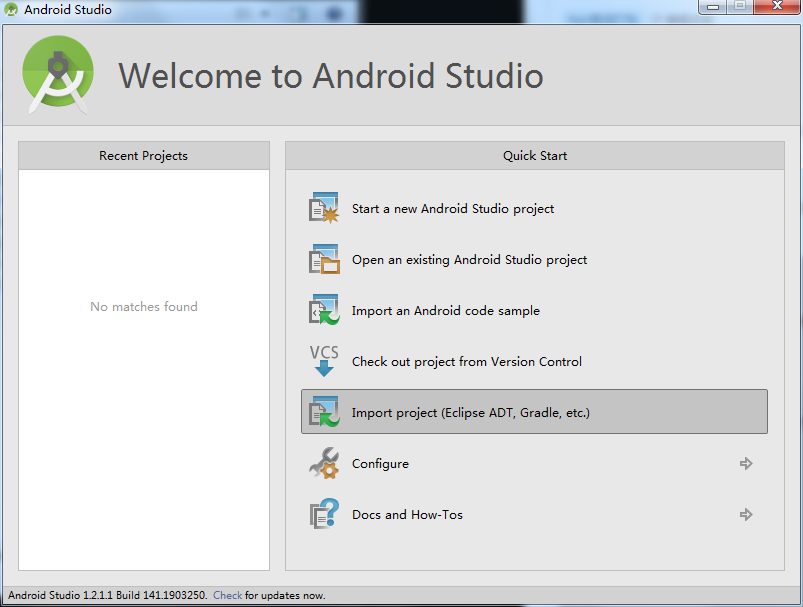
启动AndroidStudio 点击导入工程“import project”
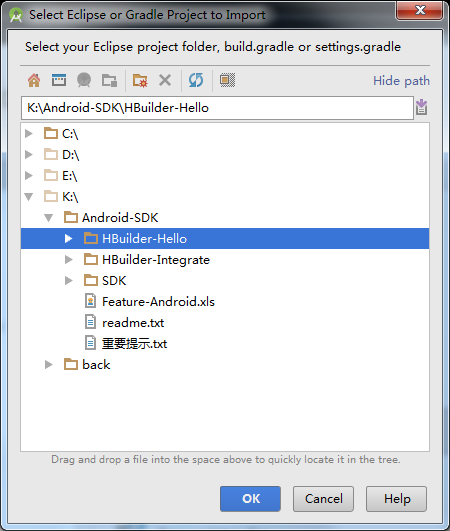
选中工程所在目录点击“OK”
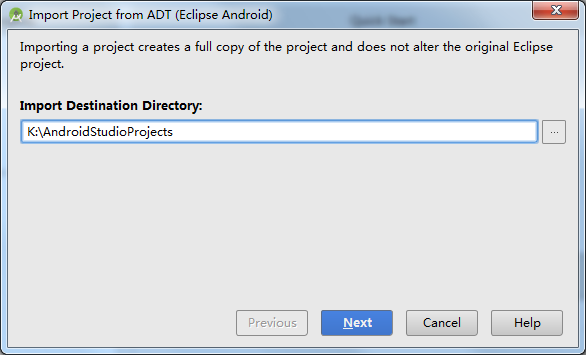
选择生成的AndroidStudio工程的保存路径,然后点击“next”,
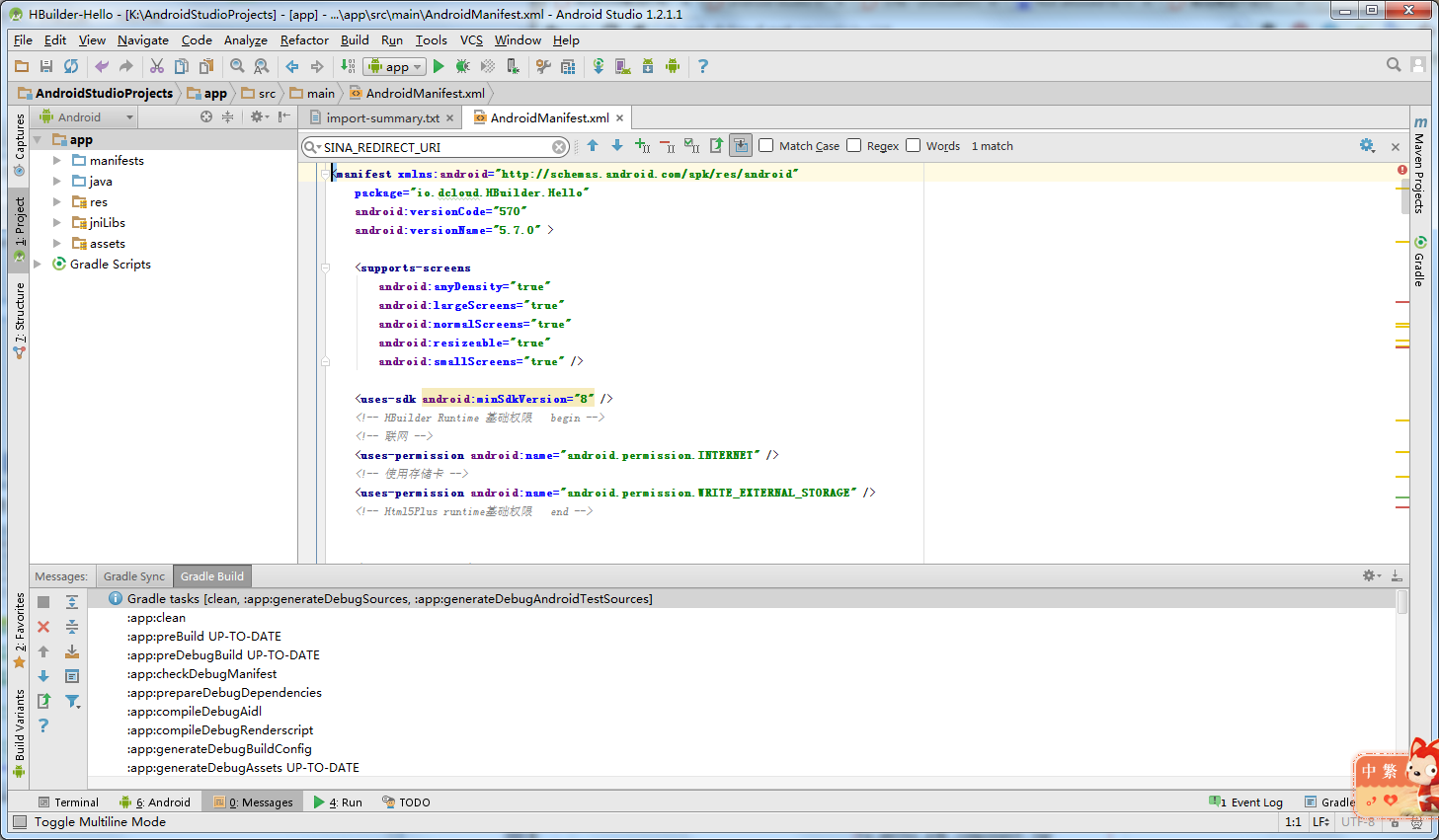
在演示工程中已经配置好HelloH5应用相关资源,完成导入后,可Shift F10直接编译运行:
从SDK目录中拷贝要使用的feature库到工程app/libs目录
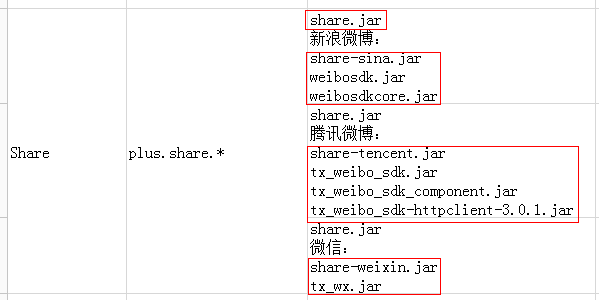
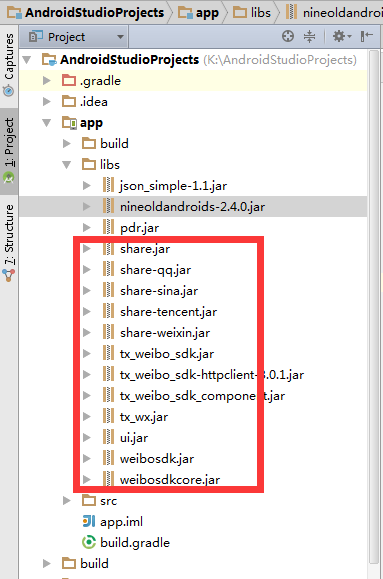
参考“Feature列表.xls”文档确定应用中使用到的扩展API,拷贝libs目录中对应的“jar”文件拷贝到工程的app->libs目录下,如果有引用“so”文件需要拷贝到工程的app->src->main->jniLibs下对应目录中。如使用分享功能(新浪微博分享、腾讯微博分享,微信分享),则需要拷贝以下文件:
拷贝完成后在工程中刷新可在工程的libs目录下显示:
-
配置应用的权限
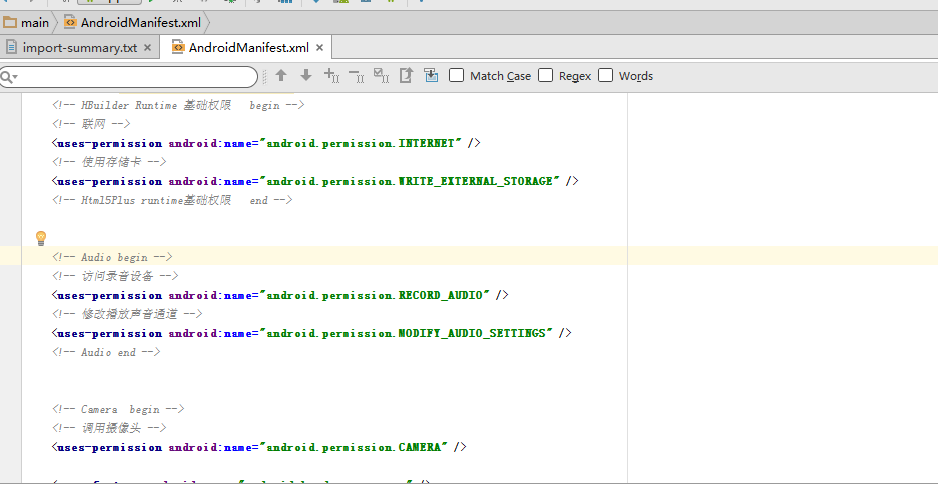
参考“Feature列表.xls”文档确定应用中使用到的扩展API,在AndroidManifest.xml文件中删除不用到API的权限。如不使用音频(plus.audio.*)相关5+ API,则可删除Audio相关的权限:
-
配置其它第三方库的数据
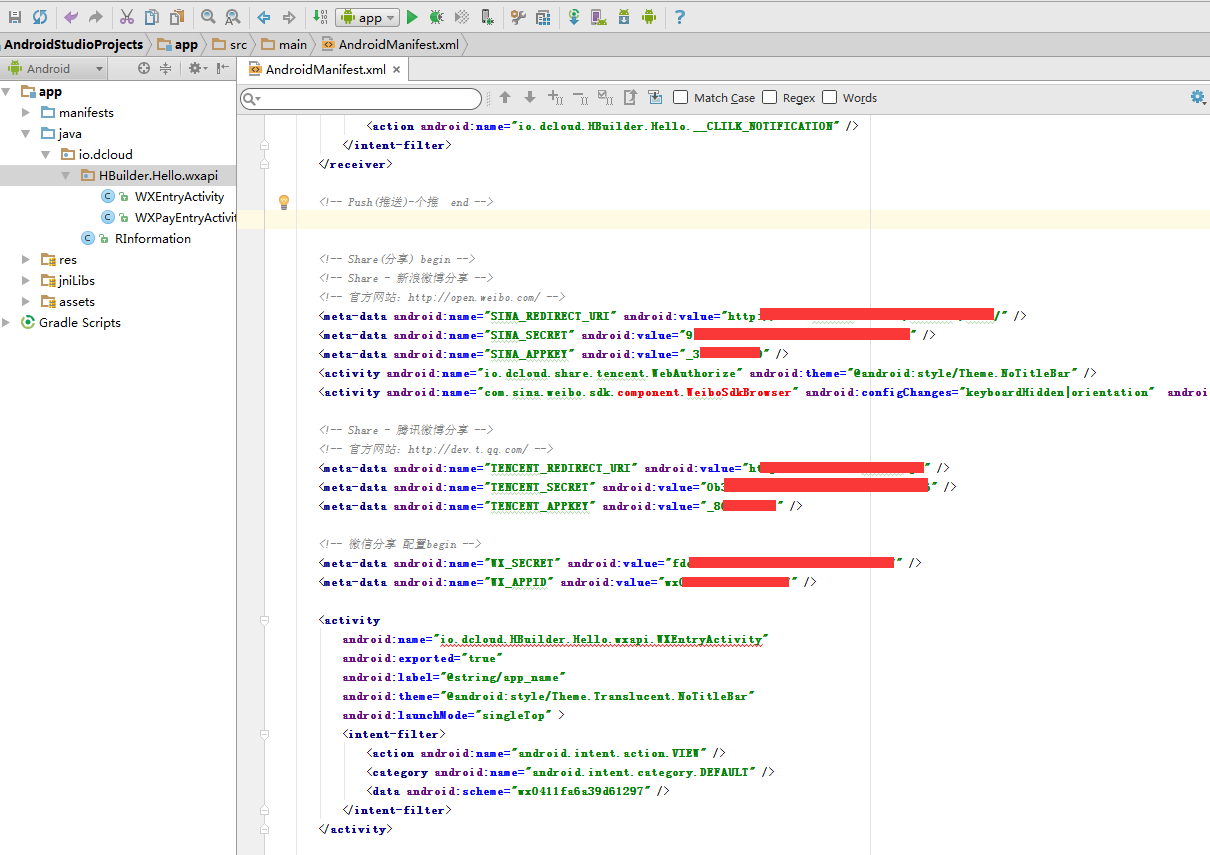
由于第三方库需要使用一些特定的数据,所以在使用时需要将相关参数配置到AndroidManifest.xml文件中。如使用分享功能,则需要配置各分享平台的申请应用的相关参数:
如果不使用此类API,则可将此数据删除。
插件的配置方法请参考以下文档
Android离线打包插件配置
推送插件配置
分享插件配置
登陆鉴权插件配置
地图插件配置
支付插件配置
定位插件配置 -
<a id="version">配置应用的包名及版本号</a>
打开AndroidManifest.xml文件,在代码视图中修改根节点的package属性值,如下:
其中package为应用的包名,采用反向域名格式,为应用的标识;versionCode为应用的版本号(整数值),用于各应用市场的升级判断,建议与manifest.json中version -> code值一致;versionName为应用的版本名称(字符串),在系统应用管理程序中显示的版本号,建议与manifest.json中version -> name值一致。 -
<a id="name">配置应用名称</a>
打开app->res -> values -> strings.xml文件,修改“app_name”字段值,该值为安装到手机上桌面显示的应用名称,建议与manifest.json中name(基础配置中的应用名称)对应:
-
<a id="channel">配置离线打包广告支持及渠道打包配置</a>
新版本SDK简化了离线打包支持DCloud广告联盟功能。
AndroidManifest.xml文件中添加如下节点到<application>节点中,并配置替换其中5+应用appid、广告联盟会员adid的值和渠道标识,因为涉及到开屏广告业务,项目工程必须以io.dcloud.PandoraEntry作为5+应用的入口Activity。该activity已包含在lib.5plus.base-release中,开发者无需实现。<meta-data android:name="DCLOUD_AD_ID" android:value="广告标识"/> <meta-data android:name="DCLOUD_AD_SPLASH" android:value="true"/><!--如果不开启开屏广告则不设置此字段或者值设置为false <meta-data android:name="DCLOUD_STREAMAPP_CHANNEL" android:value="包名|应用标识|广告标识|渠道,如io.dcloud.appid|appid|adid|google" /><!--为了保证广告统计的有效性,请正确设置此值- 包名:对应Android项目中build.gradle中的applicationId,如io.dcloud.HBuilder
- 应用标识:对应对应5+或uni-app项目manifest.json中appid
- 广告标识:DCloud的广告标识,开通广告后可在dev.dcloud.net.cn获取,如果没有开通广告,设置值为空即可
- 渠道:渠道包制作指南
注意:提交谷歌应用市场(Google Play)时一定要将渠道标识设置为google!!!
注意:以上操作只是配置5+应用具备广告能力,实际开通需要在manifest.json配置开关,具体参考DCloud广告联盟。
如果不需要支持广告,仍然可以使用Widget和WebView方式集成。
-
配置应用图标和启动界面
将应用的图标(文件名为icon.png)启动图片按照对应的尺寸拷贝到工程的app->src->main->res -> drawable-XXX目录下:
-
更新应用资源
打开app->src->main->assets -> apps 目录,将下面“HelloH5”目录名称修改为应用manifest.json中的id名称(这步非常重要,否则会导致应用无法正常启动),并将所有应用资源拷贝到其下的www目录中:
-
配置应用信息
打开app->src->main->assets -> data下的control.xml文件,修改appid和appver的值:
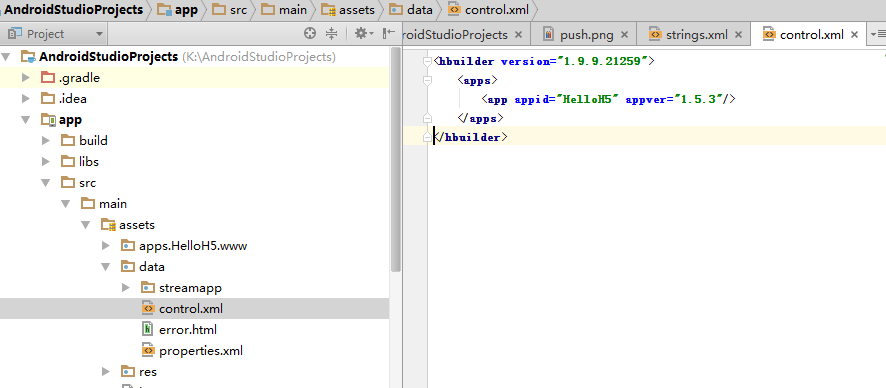
其中appid值为HBuilder应用的appid,必须与应用manifest.json中的id值完全一致;appver为应用的版本号,用于应用资源的升级,必须保持与manifest.json中的version -> name值完全一致;version值为应用基座版本号(plus.runtime.innerVersion返回的值),不要随意修改。 -
配置完成编译运行
应用配置完毕,按Shift F10编译运行应用
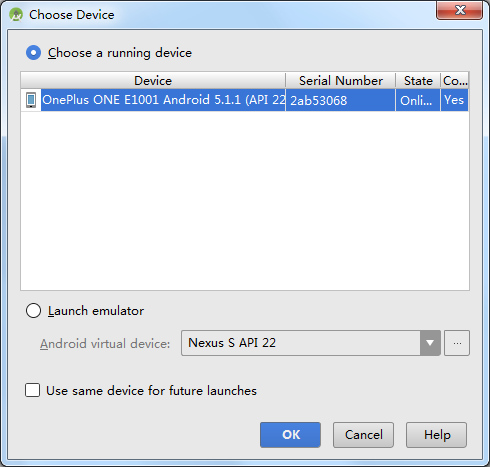
在弹出的设备列表对话框中选择要运行的设备:
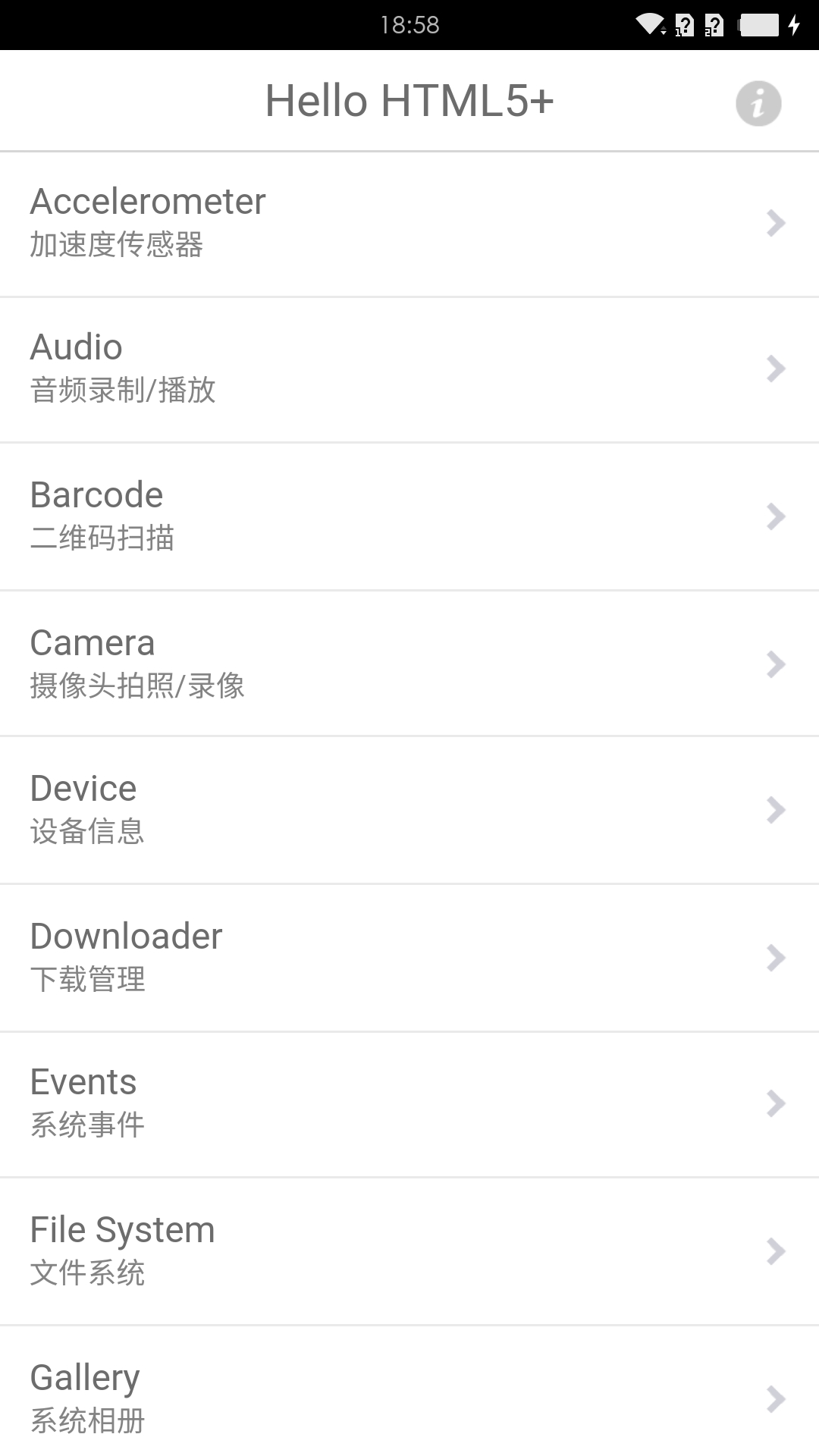
点击OK后启动应用:
常见问题
Q: 打包后页面中无法调用5+API
A: 修改app->build.gradle文件defaultConfig节点下miniSdkVersion和targetSdkVersion属性指定版本号为8

注意(新版已不需要添加):打包时如果修改APK的包名,则同时需要修改Rinfomation.java文件import的包名,
同时需要修改AndroidManifest.xml文件中引用包名的插件有
推送插件
微信(登陆,分享 ,支付),微信同时需要修改引入的WXEntryActivity.java和WXPayEntryActivity.java文件所在的包名
Q :使用Android Studio编译时如果提示如下错误

A:
下载附件并解压

点击下载
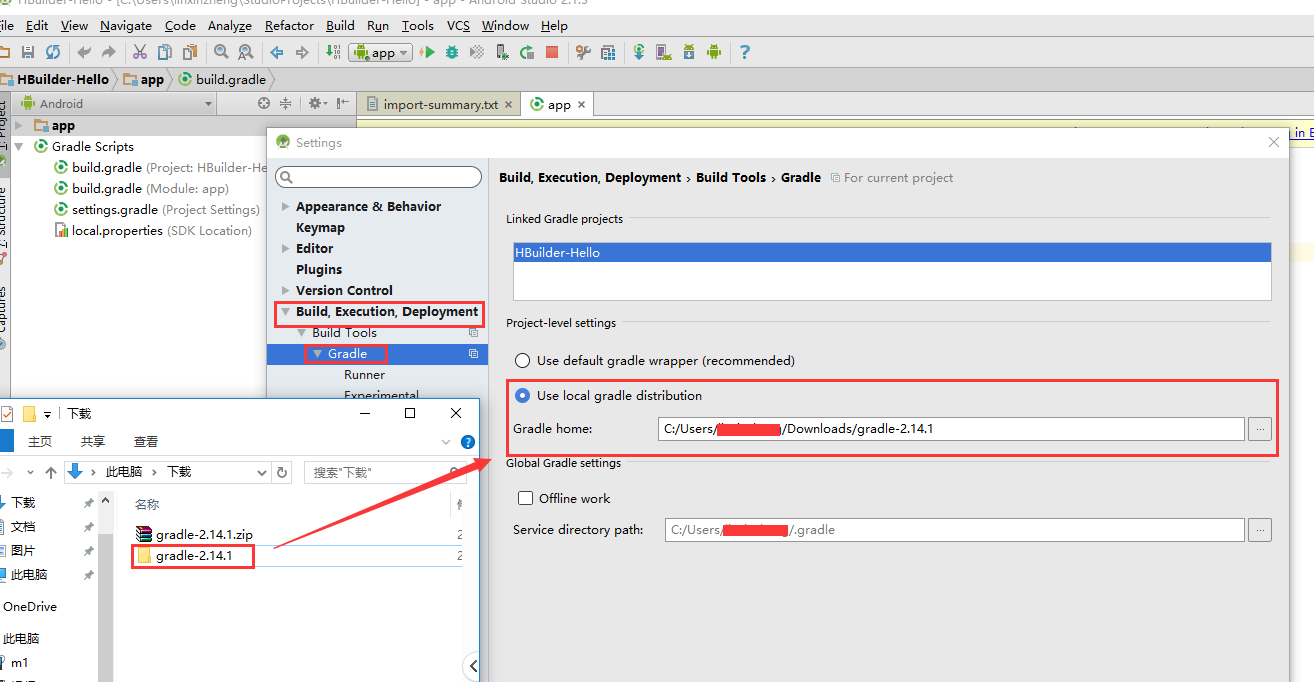
点击 Android Studio 菜单 File->Settings->Build,Execution,Development->Build Tools->Gradle选择Use local gradle distribution,选择附件解压后的目录点击OK即可
-->
新版离线sdk文档已发布,离线打包请参考最新文档
<!--
预备环境
- AndroidStudio开发环境,要求安装Android4.0或以上(API 14)SDK。
- 下载HBuilder离线打包Android版SDK(5+ SDK下载)。
离线打包SDK目录说明
- HBuilder-Hello:离线打包演示应用;
- HBuilder-Integrate: 5+ SDK 集成和插件开发示例
- libs:SDK库文件目录;
- Feature列表.xls:Android平台各扩展Feature API对应的permission;
- Readme.txt:版本说明文件。
配置编译工程
-
导入演示应用HBuilder-Hello工程
启动AndroidStudio 点击导入工程“import project”
选中工程所在目录点击“OK”
选择生成的AndroidStudio工程的保存路径,然后点击“next”,
在演示工程中已经配置好HelloH5应用相关资源,完成导入后,可Shift F10直接编译运行:
从SDK目录中拷贝要使用的feature库到工程app/libs目录
参考“Feature列表.xls”文档确定应用中使用到的扩展API,拷贝libs目录中对应的“jar”文件拷贝到工程的app->libs目录下,如果有引用“so”文件需要拷贝到工程的app->src->main->jniLibs下对应目录中。如使用分享功能(新浪微博分享、腾讯微博分享,微信分享),则需要拷贝以下文件:
拷贝完成后在工程中刷新可在工程的libs目录下显示:
-
配置应用的权限
参考“Feature列表.xls”文档确定应用中使用到的扩展API,在AndroidManifest.xml文件中删除不用到API的权限。如不使用音频(plus.audio.*)相关5+ API,则可删除Audio相关的权限:
-
配置其它第三方库的数据
由于第三方库需要使用一些特定的数据,所以在使用时需要将相关参数配置到AndroidManifest.xml文件中。如使用分享功能,则需要配置各分享平台的申请应用的相关参数:
如果不使用此类API,则可将此数据删除。
插件的配置方法请参考以下文档
Android离线打包插件配置
推送插件配置
分享插件配置
登陆鉴权插件配置
地图插件配置
支付插件配置
定位插件配置 -
<a id="version">配置应用的包名及版本号</a>
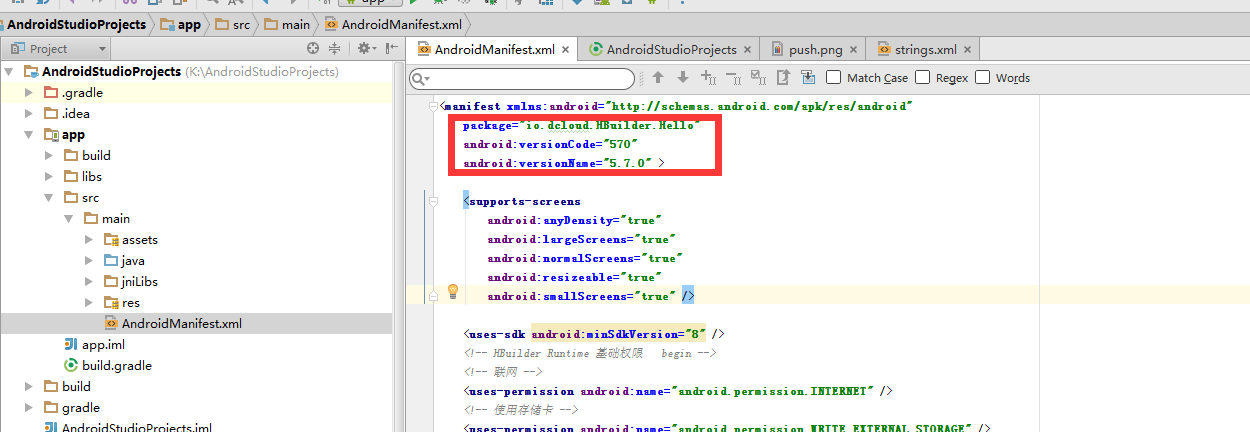
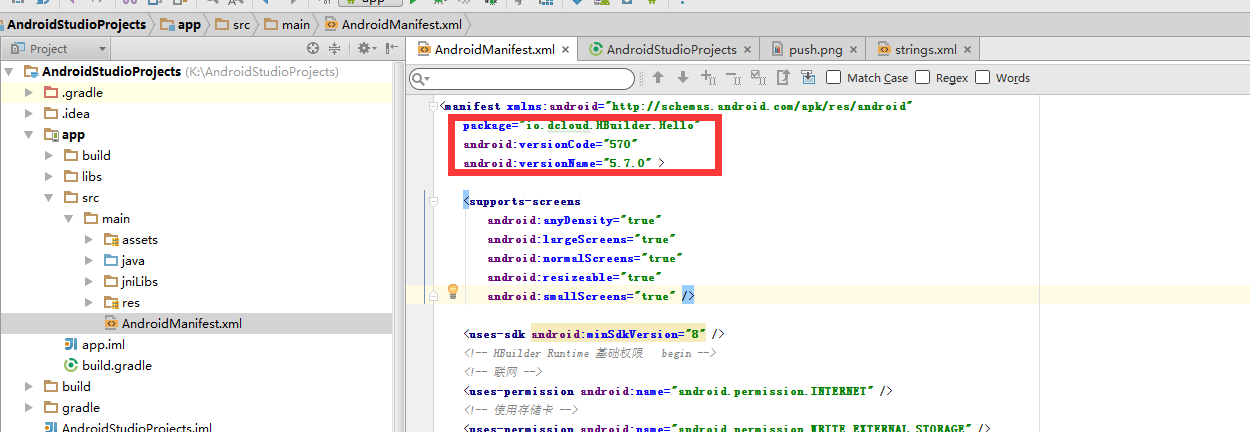
打开AndroidManifest.xml文件,在代码视图中修改根节点的package属性值,如下:
其中package为应用的包名,采用反向域名格式,为应用的标识;versionCode为应用的版本号(整数值),用于各应用市场的升级判断,建议与manifest.json中version -> code值一致;versionName为应用的版本名称(字符串),在系统应用管理程序中显示的版本号,建议与manifest.json中version -> name值一致。 -
<a id="name">配置应用名称</a>
打开app->res -> values -> strings.xml文件,修改“app_name”字段值,该值为安装到手机上桌面显示的应用名称,建议与manifest.json中name(基础配置中的应用名称)对应:
-
<a id="channel">配置离线打包广告支持及渠道打包配置</a>
新版本SDK简化了离线打包支持DCloud广告联盟功能。
AndroidManifest.xml文件中添加如下节点到<application>节点中,并配置替换其中5+应用appid、广告联盟会员adid的值和渠道标识,因为涉及到开屏广告业务,项目工程必须以io.dcloud.PandoraEntry作为5+应用的入口Activity。该activity已包含在lib.5plus.base-release中,开发者无需实现。<meta-data android:name="DCLOUD_AD_ID" android:value="广告标识"/> <meta-data android:name="DCLOUD_AD_SPLASH" android:value="true"/><!--如果不开启开屏广告则不设置此字段或者值设置为false <meta-data android:name="DCLOUD_STREAMAPP_CHANNEL" android:value="包名|应用标识|广告标识|渠道,如io.dcloud.appid|appid|adid|google" /><!--为了保证广告统计的有效性,请正确设置此值- 包名:对应Android项目中build.gradle中的applicationId,如io.dcloud.HBuilder
- 应用标识:对应对应5+或uni-app项目manifest.json中appid
- 广告标识:DCloud的广告标识,开通广告后可在dev.dcloud.net.cn获取,如果没有开通广告,设置值为空即可
- 渠道:渠道包制作指南
注意:提交谷歌应用市场(Google Play)时一定要将渠道标识设置为google!!!
注意:以上操作只是配置5+应用具备广告能力,实际开通需要在manifest.json配置开关,具体参考DCloud广告联盟。
如果不需要支持广告,仍然可以使用Widget和WebView方式集成。
-
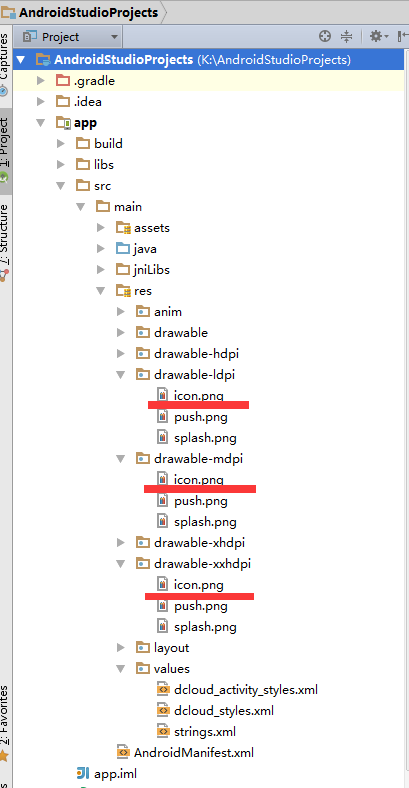
配置应用图标和启动界面
将应用的图标(文件名为icon.png)启动图片按照对应的尺寸拷贝到工程的app->src->main->res -> drawable-XXX目录下:
-
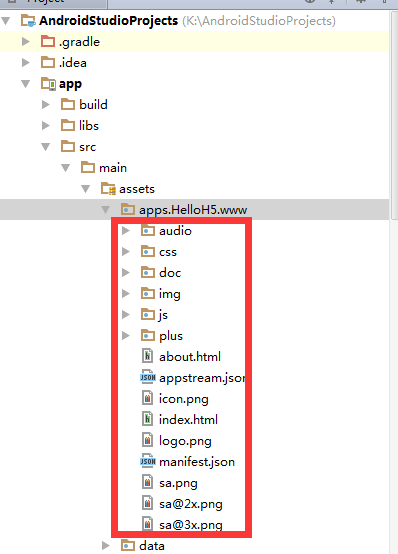
更新应用资源
打开app->src->main->assets -> apps 目录,将下面“HelloH5”目录名称修改为应用manifest.json中的id名称(这步非常重要,否则会导致应用无法正常启动),并将所有应用资源拷贝到其下的www目录中:
-
配置应用信息
打开app->src->main->assets -> data下的control.xml文件,修改appid和appver的值:
其中appid值为HBuilder应用的appid,必须与应用manifest.json中的id值完全一致;appver为应用的版本号,用于应用资源的升级,必须保持与manifest.json中的version -> name值完全一致;version值为应用基座版本号(plus.runtime.innerVersion返回的值),不要随意修改。 -
配置完成编译运行
应用配置完毕,按Shift F10编译运行应用
在弹出的设备列表对话框中选择要运行的设备:
点击OK后启动应用:
常见问题
Q: 打包后页面中无法调用5+API
A: 修改app->build.gradle文件defaultConfig节点下miniSdkVersion和targetSdkVersion属性指定版本号为8
注意(新版已不需要添加):打包时如果修改APK的包名,则同时需要修改Rinfomation.java文件import的包名,
同时需要修改AndroidManifest.xml文件中引用包名的插件有
推送插件
微信(登陆,分享 ,支付),微信同时需要修改引入的WXEntryActivity.java和WXPayEntryActivity.java文件所在的包名
Q :使用Android Studio编译时如果提示如下错误
A:
下载附件并解压
点击下载
点击 Android Studio 菜单 File->Settings->Build,Execution,Development->Build Tools->Gradle选择Use local gradle distribution,选择附件解压后的目录点击OK即可
-->
收起阅读 »
首届流应用开发大赛名单揭晓,大众点评、京东、有道等获奖
由DCloud、36氪、CSDN联合举办的首届中国流应用开发大赛,经过一个月的选拨和评选,获奖名单正式揭晓。活动期间,数百人报名参赛,无论是一线互联网公司如大众点评、京东、网易,还是创业公司,如挑食火锅、艺人捧场,都积极开发流应用,流应用在营销、用户和订单获取、开发成本节约等方面的价值成功的吸引了App厂商。
本次大赛的中奖名单如下:
一、优秀应用奖
获奖名单(4名):
大众点评外卖、大众点评爱美丽、有道词典、京东秒杀
奖励:应用商店价值5万元的推广资源
二、优秀创业奖
获奖名单(4名):
挑食火锅、宝贝租车、艺人捧场,弈客围棋
奖励:知名创业媒体36氪提供的融资平台三天banner展示位广告资源,知名投资人约见机会。
提示:体验获奖流应用的方式:使用安装360手机助手的安卓手机,点击下面的图片链接,根据提示在外部浏览器中打开,即可体验。
1.大众点评外卖

流应用体验二维码

2.大众点评爱美丽

流应用体验二维码

3.有道词典

流应用体验二维码

4.京东秒杀

流应用体验二维码

5.挑食火锅

流应用体验二维码

6.宝贝租车

流应用体验二维码

7.艺人捧场

流应用体验二维码

8.弈客围棋

除了上述获奖的App,还有很多创业者开发了体验优质的流应用,如HiMall、枫桥居花卉等。
优秀创业者获得36Kr融资频道Banner宣传:


关于流应用:流应用是DCloud公司开发的一种可以让手机App安装包实现边用边下的技术。利用js的动态语言特点,把手机端App的安装包拆解,流式下载到手机端。类似流媒体边看边下一样,流应用也可以边用边下。再辅以特殊的压缩解码技术,使得流应用可以在5秒内完成App的下载-安装-启动全过程。流应用使用的js经过了强化,可以调用原生40多万API,使得流应用的功能和体验都达到了原生水准。
本次流应用大赛之所以受到众多开发者如此关注,主要得益于流应用具有的开发者优势和用户优势。
在开发者优势方面:
1.降低App的开发成本和人员数量,原来App厂商需要iOS、Android、前端等三个开发团队,流应用只需要1个前端开发即可完成,并且还能打包成原生App以及发布为wap网站和公众号。高效率本就是世界进步发展趋势,在资本寒冬的今天,尤其需要这种高效率开发方案。
2.降低推广成本提高转化率,推广成本降低50-80%。原生App由于安装包比较大,从下载、到安装、到启动,使得推广成本非常高,而流应用从下载到安装启动一步到位,5秒内即可完成,使得App的推广成本降低,转化率提升50%-80%。
3.多端发布,方便测试。流应用基于mui开发App,生成流应用的同时,iOS、Android原生版、浏览器版、微信App和百度直达号版也随之生成,开发一次,多端发布,效率大幅提升,成本大幅下降。
在用户优势方面,流应用具有如下五大特点:
1.秒装秒开:流应用具有秒装秒开的功能,使得用户在下载安装的时候,5秒内即可安装启动,速度非常快。
2.差量实时更新:流应用采用自动差量更新技术,每次更新只需要2-3K流量,使得用户永远使用的都是最新版本的流应用,和原生应用更新相比,每次更新都需要重新下载安装包,启动一次来说,用户体验非常好。
3.省流量:流应用具有很多缩小应用包的专利技术,能大幅减少应用包体积,但毫不影响应用功能体验。。
- 省空间:流应用的安装包只有几百K,和原生App几十M,几百M的App相比,非常小,装一个原生App的空间可以装几十个流应用,流应用更加节省空间。
5.省电更流畅:流应用采用了包体压缩技术、差量更新技术,使得流应用对手机的内存、空间占用率非常少,非常省电,同时也更加流畅。
虽然本次大赛结束了,但流应用发展还在继续。后续提交流应用的开发者还有机会获得由DCloud提供的应用商店推广资源和机械键盘等奖励礼品,欢迎大家继续提交流应用。流应用交流QQ群:471285299。
由DCloud、36氪、CSDN联合举办的首届中国流应用开发大赛,经过一个月的选拨和评选,获奖名单正式揭晓。活动期间,数百人报名参赛,无论是一线互联网公司如大众点评、京东、网易,还是创业公司,如挑食火锅、艺人捧场,都积极开发流应用,流应用在营销、用户和订单获取、开发成本节约等方面的价值成功的吸引了App厂商。
本次大赛的中奖名单如下:
一、优秀应用奖
获奖名单(4名):
大众点评外卖、大众点评爱美丽、有道词典、京东秒杀
奖励:应用商店价值5万元的推广资源
二、优秀创业奖
获奖名单(4名):
挑食火锅、宝贝租车、艺人捧场,弈客围棋
奖励:知名创业媒体36氪提供的融资平台三天banner展示位广告资源,知名投资人约见机会。
提示:体验获奖流应用的方式:使用安装360手机助手的安卓手机,点击下面的图片链接,根据提示在外部浏览器中打开,即可体验。
1.大众点评外卖
流应用体验二维码
2.大众点评爱美丽
流应用体验二维码
3.有道词典
流应用体验二维码
4.京东秒杀
流应用体验二维码
5.挑食火锅
流应用体验二维码
6.宝贝租车
流应用体验二维码
7.艺人捧场
流应用体验二维码
8.弈客围棋
除了上述获奖的App,还有很多创业者开发了体验优质的流应用,如HiMall、枫桥居花卉等。
优秀创业者获得36Kr融资频道Banner宣传:
关于流应用:流应用是DCloud公司开发的一种可以让手机App安装包实现边用边下的技术。利用js的动态语言特点,把手机端App的安装包拆解,流式下载到手机端。类似流媒体边看边下一样,流应用也可以边用边下。再辅以特殊的压缩解码技术,使得流应用可以在5秒内完成App的下载-安装-启动全过程。流应用使用的js经过了强化,可以调用原生40多万API,使得流应用的功能和体验都达到了原生水准。
本次流应用大赛之所以受到众多开发者如此关注,主要得益于流应用具有的开发者优势和用户优势。
在开发者优势方面:
1.降低App的开发成本和人员数量,原来App厂商需要iOS、Android、前端等三个开发团队,流应用只需要1个前端开发即可完成,并且还能打包成原生App以及发布为wap网站和公众号。高效率本就是世界进步发展趋势,在资本寒冬的今天,尤其需要这种高效率开发方案。
2.降低推广成本提高转化率,推广成本降低50-80%。原生App由于安装包比较大,从下载、到安装、到启动,使得推广成本非常高,而流应用从下载到安装启动一步到位,5秒内即可完成,使得App的推广成本降低,转化率提升50%-80%。
3.多端发布,方便测试。流应用基于mui开发App,生成流应用的同时,iOS、Android原生版、浏览器版、微信App和百度直达号版也随之生成,开发一次,多端发布,效率大幅提升,成本大幅下降。
在用户优势方面,流应用具有如下五大特点:
1.秒装秒开:流应用具有秒装秒开的功能,使得用户在下载安装的时候,5秒内即可安装启动,速度非常快。
2.差量实时更新:流应用采用自动差量更新技术,每次更新只需要2-3K流量,使得用户永远使用的都是最新版本的流应用,和原生应用更新相比,每次更新都需要重新下载安装包,启动一次来说,用户体验非常好。
3.省流量:流应用具有很多缩小应用包的专利技术,能大幅减少应用包体积,但毫不影响应用功能体验。。
- 省空间:流应用的安装包只有几百K,和原生App几十M,几百M的App相比,非常小,装一个原生App的空间可以装几十个流应用,流应用更加节省空间。
5.省电更流畅:流应用采用了包体压缩技术、差量更新技术,使得流应用对手机的内存、空间占用率非常少,非常省电,同时也更加流畅。
虽然本次大赛结束了,但流应用发展还在继续。后续提交流应用的开发者还有机会获得由DCloud提供的应用商店推广资源和机械键盘等奖励礼品,欢迎大家继续提交流应用。流应用交流QQ群:471285299。
收起阅读 »
Android 平台5+SDK接口说明
初始化SDK
initSDK(ICore core)
说明:
初始化SDK, SDK所有接口必须在初始化之后才可以调用
参数:
- core(ICore ) 5+内核对象
示例
    @Override
    public void onCoreReady(ICore coreHandler) {
        try {
            SDK.initSDK(coreHandler);
            SDK.requestAllFeature();
        } catch (Exception e) {
            e.printStackTrace();
        }
    }
SDK集成使用方法
IApp startWebApp(Activity activity,String appBasePath,String startArgs,IWebviewStateListener listener,IOnCreateSplashView ocs)
说明:
创建并启动5+WebApp对象
参数:
- activity(Activity) Activity对象
- appBasePath(String) 移动应用所在的目录
- startArgs(String) 应用启动时传递的参数
- listener(IWebviewStateListener) Webview事件监听对象,用来监听应用的首页面加载状态
- ocs(IOnCreateSplashView) Splash事件监听对象,用来监听splash页面的加载和关闭事件
示例
    public void onCoreInitEnd(ICore coreHandler) {

        //创建默认webapp,
        String appBasePath = "/apps/HelloH5";//表示 file:///android_asset/apps/HBuilder
        String args = "{url:'http://www.baidu.com'}";//设置启动参数

        app = SDK.startWebApp(activity,appBasePath, args, new IWebviewStateListener() {
            @Override
            public Object onCallBack(int pType, Object pArgs) {

                switch (pType) {
                case IWebviewStateListener.ON_WEBVIEW_READY:
                    //准备完毕之后添加webview到显示父View中,设置排版不显示状态,避免显示webview时,html内容排版错乱问题
                    View view = ((IWebview)pArgs).obtainApp().obtainWebAppRootView().obtainMainView();
                    view.setVisibility(View.INVISIBLE);
                    rootView.addView(view, 0);
                    break;
                case IWebviewStateListener.ON_PAGE_STARTED:
                    break;
                case IWebviewStateListener.ON_PROGRESS_CHANGED:
                    break;
                case IWebviewStateListener.ON_PAGE_FINISHED:
                    //页面加载完毕,设置显示webview
                    app.obtainWebAppRootView().obtainMainView().setVisibility(View.VISIBLE);
                    break;
                }
                return null;
            }
        },this);
    }
IWebview createWebview(Activity activity,String pagePath,String basePath,String docPath,String appid, String appName,IWebviewStateListener listener)
说明:
创建一个支持5+API的Webview对象
参数:
- activity(Activity) Activity对象
- pagePath(String) 页面路径
- basePath(String) 应用的默认路径
- docPath(String) 应用的doc目录路径
- appid(String) 应用的appid
- appName(String) 应用名称
- listener(IWebviewStateListener) 加载事件监听器
示例:
public void onCoreInitEnd(ICore coreHandler) {
        //设置单页面集成的appid
        String appid = "test1";
        // 单页面集成时要加载页面的路径,可以是本地文件路径也可以是网络路径
        String url = "file:///android_asset/apps/H5Plugin/www/index.html";
        webview = SDK.createWebview(activity, url, appid, new IWebviewStateListener() {
            @Override
            public Object onCallBack(int pType, Object pArgs) {
                switch (pType) {
                case IWebviewStateListener.ON_WEBVIEW_READY:
                    // 准备完毕之后添加webview到显示父View中,设置排版不显示状态,避免显示webview时,html内容排版错乱问题
                    ((IWebview) pArgs).obtainFrameView().obtainMainView().setVisibility(View.INVISIBLE);
                    SDK.attach(mRootView, ((IWebview) pArgs));
                    break;
                case IWebviewStateListener.ON_PAGE_STARTED:
                    break;
                case IWebviewStateListener.ON_PROGRESS_CHANGED:
                    break;
                case IWebviewStateListener.ON_PAGE_FINISHED:
                    // 页面加载完毕,设置显示webview
                    webview.obtainFrameView().obtainMainView().setVisibility(View.VISIBLE);
                    break;
                }
                return null;
            }
        });

    }
IWebview createWebview(Activity activity,String pagePath,String appid,IWebviewStateListener listener)
说明:
创建一个支持5+API的Webview对象
参数:
- activity(Activity) Activity对象
- pagePath(String) HTML页面的路径
- appid(String) 默认应用的APPID
- listener(IWebviewStateListener) 页面加载事件监听器
WebApp相关方法
void stopWebApp(IApp app)
说明:
停止一个正在运行的5+WebApp
参数:
app(IApp) 正在运行的WebAPP对象
String obtainCurrentRunnbingAppId()
说明:
获取当前正在运行的5+WebApp的APPID
IApp obtainCurrentApp ()
说明:
获取到当前在前台运行的5+Webapp对象
页面相关方法
ArrayList<IWebview> obtainAllIWebview()
说明:
获取运行应用的Webview对象的集合
IWebview obtainWebview(String appid,String webviewId)
说明:
根据APPID和WebviewID获取到指定的Webview对象
参数:
- appid(String) 要获取应用的APPID
- webviewId(String) 获取应用内页面的ID
IWebview obatinFirstPage(IApp app,IWebviewStateListener listener)
说明:
获取指定应用app的首页面Iwebview对象
参数:
- app(IApp) IApp对象
- listener(IWebviewStateListener) 应用首页面的加载状态的监听
void closeWebView(IWebview webview)
说明:
关闭指定IWebview页面
参数:
- webview(IWebview)
设置可使用的5+API权限
void requestAllFeature()
说明:
向5+基座申请全部扩展API调用能力
示例
public void onCoreReady(ICore coreHandler) {
        try {
            SDK.initSDK(coreHandler);
            SDK.requestAllFeature();
        } catch (Exception e) {
            e.printStackTrace();
        }
    }
void requestFeature(String mainFeatureName,String subFeatrureName,boolean autoBoot)
说明
单独设置可以使用的API特征名
参数
- mainFeatureName(String) JS 特征名称
- subFeatrureName(String) JS特征二级名称
- autoBoot(boolean) 是否基座自动启动
示例
requestFeature("Share","share-weixin",false);注册新扩展插件
void registerJsApi(String featureName,String className,String jsContent)
说明:
向5+SDK注册一个新的扩展API
参数:
- featureName(String) 扩展插件的JS功能名称
- className(String) 扩展插件的原生类名
- jsContent(String) 扩展插件的JS代码
示例
    // 注册新的5+扩展API
    private void regNewJsAPI() {
        // 扩展插件的JS特征名称
        String featureName = "T";
        // 为处理扩展Feature的接收类全名称
        String className = "com.HBuilder.integrate.webview.WebViewMode_FeatureImpl";
        // content 为扩展Feature而创建的js代码
        String content = "(function(plus){function test(){return plus.bridge.execSync('T','test',[arguments]);}plus.T = {test:test};})(window.plus);";
        // 注册新的扩展方法
        SDK.registerJsApi(featureName, className, content);
    }
初始化SDK
initSDK(ICore core)
说明:
初始化SDK, SDK所有接口必须在初始化之后才可以调用
参数:
- core(ICore ) 5+内核对象
示例
    @Override
    public void onCoreReady(ICore coreHandler) {
        try {
            SDK.initSDK(coreHandler);
            SDK.requestAllFeature();
        } catch (Exception e) {
            e.printStackTrace();
        }
    }
SDK集成使用方法
IApp startWebApp(Activity activity,String appBasePath,String startArgs,IWebviewStateListener listener,IOnCreateSplashView ocs)
说明:
创建并启动5+WebApp对象
参数:
- activity(Activity) Activity对象
- appBasePath(String) 移动应用所在的目录
- startArgs(String) 应用启动时传递的参数
- listener(IWebviewStateListener) Webview事件监听对象,用来监听应用的首页面加载状态
- ocs(IOnCreateSplashView) Splash事件监听对象,用来监听splash页面的加载和关闭事件
示例
    public void onCoreInitEnd(ICore coreHandler) {

        //创建默认webapp,
        String appBasePath = "/apps/HelloH5";//表示 file:///android_asset/apps/HBuilder
        String args = "{url:'http://www.baidu.com'}";//设置启动参数

        app = SDK.startWebApp(activity,appBasePath, args, new IWebviewStateListener() {
            @Override
            public Object onCallBack(int pType, Object pArgs) {

                switch (pType) {
                case IWebviewStateListener.ON_WEBVIEW_READY:
                    //准备完毕之后添加webview到显示父View中,设置排版不显示状态,避免显示webview时,html内容排版错乱问题
                    View view = ((IWebview)pArgs).obtainApp().obtainWebAppRootView().obtainMainView();
                    view.setVisibility(View.INVISIBLE);
                    rootView.addView(view, 0);
                    break;
                case IWebviewStateListener.ON_PAGE_STARTED:
                    break;
                case IWebviewStateListener.ON_PROGRESS_CHANGED:
                    break;
                case IWebviewStateListener.ON_PAGE_FINISHED:
                    //页面加载完毕,设置显示webview
                    app.obtainWebAppRootView().obtainMainView().setVisibility(View.VISIBLE);
                    break;
                }
                return null;
            }
        },this);
    }
IWebview createWebview(Activity activity,String pagePath,String basePath,String docPath,String appid, String appName,IWebviewStateListener listener)
说明:
创建一个支持5+API的Webview对象
参数:
- activity(Activity) Activity对象
- pagePath(String) 页面路径
- basePath(String) 应用的默认路径
- docPath(String) 应用的doc目录路径
- appid(String) 应用的appid
- appName(String) 应用名称
- listener(IWebviewStateListener) 加载事件监听器
示例:
public void onCoreInitEnd(ICore coreHandler) {
        //设置单页面集成的appid
        String appid = "test1";
        // 单页面集成时要加载页面的路径,可以是本地文件路径也可以是网络路径
        String url = "file:///android_asset/apps/H5Plugin/www/index.html";
        webview = SDK.createWebview(activity, url, appid, new IWebviewStateListener() {
            @Override
            public Object onCallBack(int pType, Object pArgs) {
                switch (pType) {
                case IWebviewStateListener.ON_WEBVIEW_READY:
                    // 准备完毕之后添加webview到显示父View中,设置排版不显示状态,避免显示webview时,html内容排版错乱问题
                    ((IWebview) pArgs).obtainFrameView().obtainMainView().setVisibility(View.INVISIBLE);
                    SDK.attach(mRootView, ((IWebview) pArgs));
                    break;
                case IWebviewStateListener.ON_PAGE_STARTED:
                    break;
                case IWebviewStateListener.ON_PROGRESS_CHANGED:
                    break;
                case IWebviewStateListener.ON_PAGE_FINISHED:
                    // 页面加载完毕,设置显示webview
                    webview.obtainFrameView().obtainMainView().setVisibility(View.VISIBLE);
                    break;
                }
                return null;
            }
        });

    }
IWebview createWebview(Activity activity,String pagePath,String appid,IWebviewStateListener listener)
说明:
创建一个支持5+API的Webview对象
参数:
- activity(Activity) Activity对象
- pagePath(String) HTML页面的路径
- appid(String) 默认应用的APPID
- listener(IWebviewStateListener) 页面加载事件监听器
WebApp相关方法
void stopWebApp(IApp app)
说明:
停止一个正在运行的5+WebApp
参数:
app(IApp) 正在运行的WebAPP对象
String obtainCurrentRunnbingAppId()
说明:
获取当前正在运行的5+WebApp的APPID
IApp obtainCurrentApp ()
说明:
获取到当前在前台运行的5+Webapp对象
页面相关方法
ArrayList<IWebview> obtainAllIWebview()
说明:
获取运行应用的Webview对象的集合
IWebview obtainWebview(String appid,String webviewId)
说明:
根据APPID和WebviewID获取到指定的Webview对象
参数:
- appid(String) 要获取应用的APPID
- webviewId(String) 获取应用内页面的ID
IWebview obatinFirstPage(IApp app,IWebviewStateListener listener)
说明:
获取指定应用app的首页面Iwebview对象
参数:
- app(IApp) IApp对象
- listener(IWebviewStateListener) 应用首页面的加载状态的监听
void closeWebView(IWebview webview)
说明:
关闭指定IWebview页面
参数:
- webview(IWebview)
设置可使用的5+API权限
void requestAllFeature()
说明:
向5+基座申请全部扩展API调用能力
示例
public void onCoreReady(ICore coreHandler) {
        try {
            SDK.initSDK(coreHandler);
            SDK.requestAllFeature();
        } catch (Exception e) {
            e.printStackTrace();
        }
    }
void requestFeature(String mainFeatureName,String subFeatrureName,boolean autoBoot)
说明
单独设置可以使用的API特征名
参数
- mainFeatureName(String) JS 特征名称
- subFeatrureName(String) JS特征二级名称
- autoBoot(boolean) 是否基座自动启动
示例
requestFeature("Share","share-weixin",false);注册新扩展插件
void registerJsApi(String featureName,String className,String jsContent)
说明:
向5+SDK注册一个新的扩展API
参数:
- featureName(String) 扩展插件的JS功能名称
- className(String) 扩展插件的原生类名
- jsContent(String) 扩展插件的JS代码
示例
    // 注册新的5+扩展API
    private void regNewJsAPI() {
        // 扩展插件的JS特征名称
        String featureName = "T";
        // 为处理扩展Feature的接收类全名称
        String className = "com.HBuilder.integrate.webview.WebViewMode_FeatureImpl";
        // content 为扩展Feature而创建的js代码
        String content = "(function(plus){function test(){return plus.bridge.execSync('T','test',[arguments]);}plus.T = {test:test};})(window.plus);";
        // 注册新的扩展方法
        SDK.registerJsApi(featureName, className, content);
    }

chrome://inspect调试html页面空白,DOM无法加载的解决方案
chrome://inspect调试html页面空白,DOM无法加载的解决方案
先描述一下问题
有一段时间没碰huilder hybird app 开发了,今天调试的时候
chrome://inspect/#devices
可以发现页面,但是打开后空白
解决方案
翻墙后就可以了,下次就不需要翻墙了 估计原因
1.chrome升级后原有配置失效
2.浏览器缓存被软件管家清掉了chrome://inspect调试html页面空白,DOM无法加载的解决方案
先描述一下问题
有一段时间没碰huilder hybird app 开发了,今天调试的时候
chrome://inspect/#devices
可以发现页面,但是打开后空白
解决方案
翻墙后就可以了,下次就不需要翻墙了 估计原因
1.chrome升级后原有配置失效
2.浏览器缓存被软件管家清掉了
android studio 的离线打包指南在哪里?不会只有 eclipse ADT 吧?
能不能请官方出个 android studio 的离线打包指南?
android studio 都已经出几年了,也是 google 官方指定的使用的 IDE
没道理只有 eclipse ADT bundle 离线打包 的指南吧?
能不能请官方出个 android studio 的离线打包指南?
android studio 都已经出几年了,也是 google 官方指定的使用的 IDE
没道理只有 eclipse ADT bundle 离线打包 的指南吧?
【分享】一个Notification 进度条插件(android,NJS实现,直接就可使用)
如题,分享一个Notification 进度条插件(android,用js调用原生api实现,直接就可以使用).
参考1: http://ask.dcloud.net.cn/article/155
参考2:http://ask.dcloud.net.cn/question/2464
详细介绍: 最近有一个需求是,android更新资源包时,需要在通知栏里显示下载进度条,于是就搜索了下已有的解决方案
发现并没有现成的解决方案,于是参考了以上两个解决方案,结合了下,实现了直接能调用的js插件.
第一步(分析以上两种方案的缺陷):
第一种:功能上能实现需求,但是使用起来太麻烦,而且也不方便调试(需要离线打包后才能看到效果),
而且,我这里还遇到了一个问题,在 hbuild 6.9.2 中,我明明已经添加了自定义模块权限,但是却一直提示我 ***权限没有添加, 真的是把我弄的吐血了, 所以没办法,只能另谋他路.
第二种:使用起来很方便,但是却没有完全达到功能要求(只显示了普通通知,但没有显示进度条),而且在api <16 的机子上会报错.
于是在这个基础上,结合第一种方法.写了一个 工具类,实现android的通知栏控制(兼容了api11-16的通知显示)
源码:
/**
 * @description njs实现android原生功能
 * 1.通知栏消息
 * @see http://ask.dcloud.net.cn/article/503
 *
 * @author dailc
 * @version 1.0
 * @time 2016-01-08 08:38:20
 */
(function(obj) {
    var defaultTitle = '通知栏标题';
    var defaultContent = '通知内容';
    var defaultTicker = '通知提示';
    var defaultNotifyId = 1000;
    var defaultNumber = 1;
    /**
     * plusReady
     * @param {type} callback
     * @returns {Window}
     */
    obj.plusReady = function(callback) {
        if (window.plus) {
            setTimeout(function() { //解决callback与plusready事件的执行时机问题(典型案例:showWaiting,closeWaiting)
                callback();
            }, 0);
        } else {
            document.addEventListener("plusready", function() {
                callback();
            }, false);
        }
        return this;
    };
    /**
     * @description 比较两个版本大小
     * 比较版本大小,如果新版本nowVersion大于旧版本OldResourceVersion则返回true,否则返回false
     */
    function compareVersion(OldVersion, nowVersion) {
        if (!OldVersion || !nowVersion || OldVersion == '' || nowVersion == '') {

            return false;
        }
        //第二份参数 是 数组的最大长度
        var OldVersionA = OldVersion.split(".", 4);
        var nowVersionA = nowVersion.split(".", 4);
        for (var i = 0; i < OldVersionA.length && i < nowVersionA.length; i++) {
            var strOld = OldVersionA[i];
            var numOld = parseInt(strOld);
            var strNow = nowVersionA[i];
            var numNow = parseInt(strNow);
            //小版本到高版本
            if (numNow > numOld
                //||strNow.length>strOld.length
            ) {
                return true;
            } else if (numNow < numOld) {
                return false;
            }
        }
        //如果是版本  如 1.6 - 1.6.1
        if (nowVersionA.length > OldVersionA.length && 0 == nowVersion.indexOf(OldVersion)) {
            return true;
        }
    };
    /**
     * @description 通过push功能来推送消息
     */
    obj.sendNotificationByPush = function() {
        var options = {
            cover: false
        };
        var str = ": 欢迎使用Html5 Plus创建本地消息!";
        plus.push.createMessage(str, "LocalMSG", options);
    };
    (function() {
        /**
         * @constructor 创建通知栏进度条构造函数
         */
        function NotificationCustom() {
            if (plus.os.name != 'Android') {
                return;
            }
            //当前版本号
            var SystemVersion = plus.os.version;
            var Context = plus.android.importClass("android.content.Context");
            var main = plus.android.runtimeMainActivity();
            var NotificationManager = plus.android.importClass("android.app.NotificationManager");
            var nm = main.getSystemService(Context.NOTIFICATION_SERVICE)
                // Notification build 要android api16以上才能使用(4.1.2以上)
            var Notification = null;
            if (compareVersion('4.1.1', SystemVersion) == true) {
                Notification = plus.android.importClass("android.app.Notification");
            } else {
                Notification = plus.android.importClass("android.support.v4.app.NotificationCompat");
            }
            if (Notification) {
                this.notifyManager = nm;
                this.mNotificationBuild = new Notification.Builder(main);
                //设为true代表常驻状态栏
                this.mNotificationBuild.setOngoing(false);
                this.mNotificationBuild.setContentTitle(defaultTitle);
                this.mNotificationBuild.setContentText(defaultContent);
                this.mNotificationBuild.setTicker(defaultTicker);
                //默认的push图标
                this.mNotificationBuild.setSmallIcon(17301620);
                //设置默认声音
                //console.log('默认:'+plus.android.importClass("android.app.Notification").DEFAULT_SOUND);
                this.mNotificationBuild.setDefaults(plus.android.importClass("android.app.Notification").DEFAULT_SOUND);
                //this.mNotificationBuild.setNumber(defaultNumber)
            }
        };
        /**
         * @description 给android通知栏发送通知
         * @param {String} title 标题
         * @param {String} content  内容
         * @param {String} tickerTips  提示
         * @param {Number} notifyId id,默认为1000
         */
        NotificationCustom.prototype.setNotification = function(title, content, tickerTips,notifyId) {
            if (this.mNotificationBuild == null ||
                this.notifyManager == null) {
                return;
            }
            notifyId = (typeof(notifyId)=='number')?notifyId:defaultNotifyId;
            title = title || defaultTitle;
            content = content || defaultContent;
            tickerTips = tickerTips || defaultTicker;
            this.mNotificationBuild.setContentTitle(title);
            this.mNotificationBuild.setContentText(content);
            this.mNotificationBuild.setTicker(tickerTips);
            //默认有声音
            this.mNotificationBuild.setDefaults(plus.android.importClass("android.app.Notification").DEFAULT_SOUND);
            this.notifyManager.notify(notifyId, this.mNotificationBuild.build());
        };
        /**
         * @description 设置进度条
         * @param {Number} progress
         * @param {String} title 标题
         * @param {String} content  内容
         * @param {String} tickerTips  提示
         * @param {Number} notifyId id,默认为1000
         */
        NotificationCustom.prototype.setProgress = function(progress, title, content, tickerTips,notifyId) {
            if (this.mNotificationBuild == null ||
                this.notifyManager == null) {
                return;
            }
            notifyId = (typeof(notifyId)=='number')?notifyId:defaultNotifyId;
            title = title || '正在下载';
            content = content || '正在下载';
            tickerTips = tickerTips || '进度提示';
            //          tickerTips = tickerTips || defaultTicker;
            this.mNotificationBuild.setContentTitle(title);
            this.mNotificationBuild.setContentText(content);
            this.mNotificationBuild.setTicker(tickerTips);
            //进度条显示时,默认无声音
            this.mNotificationBuild.setDefaults(0);
            this.mNotificationBuild.setProgress(100, progress, false);
            this.notifyManager.notify(notifyId, this.mNotificationBuild.build());
        };
        /**
         * @description 完成进度条
         * @param {String} title 标题
         * @param {String} content  内容
         * @param {String} tickerTips  提示
         * @param {Number} notifyId id,默认为1000
         */
        NotificationCustom.prototype.compProgressNotification = function(title, content, tickerTips,notifyId) {
            if (this.mNotificationBuild == null ||
                this.notifyManager == null) {
                return;
            }
            notifyId = (typeof(notifyId)=='number')?notifyId:defaultNotifyId;
            title = title || '进度条显示完毕';
            content = content || '进度条显示完毕';
            tickerTips = tickerTips || '进度提示';
            this.mNotificationBuild.setContentTitle(title);
            this.mNotificationBuild.setContentText(content);
            this.mNotificationBuild.setTicker(tickerTips);
            this.mNotificationBuild.setProgress(0, 0, false);
            //默认有声音
            this.mNotificationBuild.setDefaults(plus.android.importClass("android.app.Notification").DEFAULT_SOUND);
            this.notifyManager.notify(notifyId, this.mNotificationBuild.build());
        };
        /**
         * @description 清除通知栏信息
         * @param {Number} notifyId id,默认为1000
         */
        NotificationCustom.prototype.clearNotification = function(notifyId) {
            notifyId = (typeof(notifyId)=='number')?notifyId:defaultNotifyId;
            if(this.notifyManager){
                this.notifyManager.cancel(notifyId);
            }
        };
        /**
         * @description 清除所有通知栏信息
         */
        NotificationCustom.prototype.clearAllNotification = function() {
            if(this.notifyManager){
                this.notifyManager.cancelAll();
            }
        };
        obj.plusReady(function() {
            obj.NotificationUtil = new NotificationCustom();
        });
    })();

})(window.NjsPhoneApi = {});
调用方法示例:
显示普通通知:
NjsPhoneApi.NotificationUtil.setNotification('测试标题'+staticI,'测试内容');显示进度条代码:
function testProgress() {
        //插件调用
        NjsPhoneApi.NotificationUtil.setNotification("新版下载", "开始下载");
        var current = 0;
        NjsPhoneApi.NotificationUtil.setProgress(current); //插件调用
        function progress() {
            setTimeout(function() {
                current += 1;
                NjsPhoneApi.NotificationUtil.setProgress(current);
                if(current>=100){
                     NjsPhoneApi.NotificationUtil.compProgressNotification("下载完成");
                }else{
                    progress();
                }
            }, 100);
        };
        progress();
    };
testProgress();//调用显示进度条
取消单条通知:(传入参数为id,不传采用默认id)
NjsPhoneApi.NotificationUtil.clearNotification();取消所有通知:
NjsPhoneApi.NotificationUtil.clearAllNotification();另外: 支持自定义id的通知,也就是说可以通过传入不同的id,同时显示不同的通知
效果图1:
效果图2:
示例源码:鉴于有一些朋友会有各式各样的奇怪错误,所以这里单独写了一个示例,测试了android机型(华为,联想)都是可以正常使用的.
示例源码中采用的是默认id
如题,分享一个Notification 进度条插件(android,用js调用原生api实现,直接就可以使用).
参考1: http://ask.dcloud.net.cn/article/155
参考2:http://ask.dcloud.net.cn/question/2464
详细介绍: 最近有一个需求是,android更新资源包时,需要在通知栏里显示下载进度条,于是就搜索了下已有的解决方案
发现并没有现成的解决方案,于是参考了以上两个解决方案,结合了下,实现了直接能调用的js插件.
第一步(分析以上两种方案的缺陷):
第一种:功能上能实现需求,但是使用起来太麻烦,而且也不方便调试(需要离线打包后才能看到效果),
而且,我这里还遇到了一个问题,在 hbuild 6.9.2 中,我明明已经添加了自定义模块权限,但是却一直提示我 ***权限没有添加, 真的是把我弄的吐血了, 所以没办法,只能另谋他路.
第二种:使用起来很方便,但是却没有完全达到功能要求(只显示了普通通知,但没有显示进度条),而且在api <16 的机子上会报错.
于是在这个基础上,结合第一种方法.写了一个 工具类,实现android的通知栏控制(兼容了api11-16的通知显示)
源码:
/**
 * @description njs实现android原生功能
 * 1.通知栏消息
 * @see http://ask.dcloud.net.cn/article/503
 *
 * @author dailc
 * @version 1.0
 * @time 2016-01-08 08:38:20
 */
(function(obj) {
    var defaultTitle = '通知栏标题';
    var defaultContent = '通知内容';
    var defaultTicker = '通知提示';
    var defaultNotifyId = 1000;
    var defaultNumber = 1;
    /**
     * plusReady
     * @param {type} callback
     * @returns {Window}
     */
    obj.plusReady = function(callback) {
        if (window.plus) {
            setTimeout(function() { //解决callback与plusready事件的执行时机问题(典型案例:showWaiting,closeWaiting)
                callback();
            }, 0);
        } else {
            document.addEventListener("plusready", function() {
                callback();
            }, false);
        }
        return this;
    };
    /**
     * @description 比较两个版本大小
     * 比较版本大小,如果新版本nowVersion大于旧版本OldResourceVersion则返回true,否则返回false
     */
    function compareVersion(OldVersion, nowVersion) {
        if (!OldVersion || !nowVersion || OldVersion == '' || nowVersion == '') {

            return false;
        }
        //第二份参数 是 数组的最大长度
        var OldVersionA = OldVersion.split(".", 4);
        var nowVersionA = nowVersion.split(".", 4);
        for (var i = 0; i < OldVersionA.length && i < nowVersionA.length; i++) {
            var strOld = OldVersionA[i];
            var numOld = parseInt(strOld);
            var strNow = nowVersionA[i];
            var numNow = parseInt(strNow);
            //小版本到高版本
            if (numNow > numOld
                //||strNow.length>strOld.length
            ) {
                return true;
            } else if (numNow < numOld) {
                return false;
            }
        }
        //如果是版本  如 1.6 - 1.6.1
        if (nowVersionA.length > OldVersionA.length && 0 == nowVersion.indexOf(OldVersion)) {
            return true;
        }
    };
    /**
     * @description 通过push功能来推送消息
     */
    obj.sendNotificationByPush = function() {
        var options = {
            cover: false
        };
        var str = ": 欢迎使用Html5 Plus创建本地消息!";
        plus.push.createMessage(str, "LocalMSG", options);
    };
    (function() {
        /**
         * @constructor 创建通知栏进度条构造函数
         */
        function NotificationCustom() {
            if (plus.os.name != 'Android') {
                return;
            }
            //当前版本号
            var SystemVersion = plus.os.version;
            var Context = plus.android.importClass("android.content.Context");
            var main = plus.android.runtimeMainActivity();
            var NotificationManager = plus.android.importClass("android.app.NotificationManager");
            var nm = main.getSystemService(Context.NOTIFICATION_SERVICE)
                // Notification build 要android api16以上才能使用(4.1.2以上)
            var Notification = null;
            if (compareVersion('4.1.1', SystemVersion) == true) {
                Notification = plus.android.importClass("android.app.Notification");
            } else {
                Notification = plus.android.importClass("android.support.v4.app.NotificationCompat");
            }
            if (Notification) {
                this.notifyManager = nm;
                this.mNotificationBuild = new Notification.Builder(main);
                //设为true代表常驻状态栏
                this.mNotificationBuild.setOngoing(false);
                this.mNotificationBuild.setContentTitle(defaultTitle);
                this.mNotificationBuild.setContentText(defaultContent);
                this.mNotificationBuild.setTicker(defaultTicker);
                //默认的push图标
                this.mNotificationBuild.setSmallIcon(17301620);
                //设置默认声音
                //console.log('默认:'+plus.android.importClass("android.app.Notification").DEFAULT_SOUND);
                this.mNotificationBuild.setDefaults(plus.android.importClass("android.app.Notification").DEFAULT_SOUND);
                //this.mNotificationBuild.setNumber(defaultNumber)
            }
        };
        /**
         * @description 给android通知栏发送通知
         * @param {String} title 标题
         * @param {String} content  内容
         * @param {String} tickerTips  提示
         * @param {Number} notifyId id,默认为1000
         */
        NotificationCustom.prototype.setNotification = function(title, content, tickerTips,notifyId) {
            if (this.mNotificationBuild == null ||
                this.notifyManager == null) {
                return;
            }
            notifyId = (typeof(notifyId)=='number')?notifyId:defaultNotifyId;
            title = title || defaultTitle;
            content = content || defaultContent;
            tickerTips = tickerTips || defaultTicker;
            this.mNotificationBuild.setContentTitle(title);
            this.mNotificationBuild.setContentText(content);
            this.mNotificationBuild.setTicker(tickerTips);
            //默认有声音
            this.mNotificationBuild.setDefaults(plus.android.importClass("android.app.Notification").DEFAULT_SOUND);
            this.notifyManager.notify(notifyId, this.mNotificationBuild.build());
        };
        /**
         * @description 设置进度条
         * @param {Number} progress
         * @param {String} title 标题
         * @param {String} content  内容
         * @param {String} tickerTips  提示
         * @param {Number} notifyId id,默认为1000
         */
        NotificationCustom.prototype.setProgress = function(progress, title, content, tickerTips,notifyId) {
            if (this.mNotificationBuild == null ||
                this.notifyManager == null) {
                return;
            }
            notifyId = (typeof(notifyId)=='number')?notifyId:defaultNotifyId;
            title = title || '正在下载';
            content = content || '正在下载';
            tickerTips = tickerTips || '进度提示';
            //          tickerTips = tickerTips || defaultTicker;
            this.mNotificationBuild.setContentTitle(title);
            this.mNotificationBuild.setContentText(content);
            this.mNotificationBuild.setTicker(tickerTips);
            //进度条显示时,默认无声音
            this.mNotificationBuild.setDefaults(0);
            this.mNotificationBuild.setProgress(100, progress, false);
            this.notifyManager.notify(notifyId, this.mNotificationBuild.build());
        };
        /**
         * @description 完成进度条
         * @param {String} title 标题
         * @param {String} content  内容
         * @param {String} tickerTips  提示
         * @param {Number} notifyId id,默认为1000
         */
        NotificationCustom.prototype.compProgressNotification = function(title, content, tickerTips,notifyId) {
            if (this.mNotificationBuild == null ||
                this.notifyManager == null) {
                return;
            }
            notifyId = (typeof(notifyId)=='number')?notifyId:defaultNotifyId;
            title = title || '进度条显示完毕';
            content = content || '进度条显示完毕';
            tickerTips = tickerTips || '进度提示';
            this.mNotificationBuild.setContentTitle(title);
            this.mNotificationBuild.setContentText(content);
            this.mNotificationBuild.setTicker(tickerTips);
            this.mNotificationBuild.setProgress(0, 0, false);
            //默认有声音
            this.mNotificationBuild.setDefaults(plus.android.importClass("android.app.Notification").DEFAULT_SOUND);
            this.notifyManager.notify(notifyId, this.mNotificationBuild.build());
        };
        /**
         * @description 清除通知栏信息
         * @param {Number} notifyId id,默认为1000
         */
        NotificationCustom.prototype.clearNotification = function(notifyId) {
            notifyId = (typeof(notifyId)=='number')?notifyId:defaultNotifyId;
            if(this.notifyManager){
                this.notifyManager.cancel(notifyId);
            }
        };
        /**
         * @description 清除所有通知栏信息
         */
        NotificationCustom.prototype.clearAllNotification = function() {
            if(this.notifyManager){
                this.notifyManager.cancelAll();
            }
        };
        obj.plusReady(function() {
            obj.NotificationUtil = new NotificationCustom();
        });
    })();

})(window.NjsPhoneApi = {});
调用方法示例:
显示普通通知:
NjsPhoneApi.NotificationUtil.setNotification('测试标题'+staticI,'测试内容');显示进度条代码:
function testProgress() {
        //插件调用
        NjsPhoneApi.NotificationUtil.setNotification("新版下载", "开始下载");
        var current = 0;
        NjsPhoneApi.NotificationUtil.setProgress(current); //插件调用
        function progress() {
            setTimeout(function() {
                current += 1;
                NjsPhoneApi.NotificationUtil.setProgress(current);
                if(current>=100){
                     NjsPhoneApi.NotificationUtil.compProgressNotification("下载完成");
                }else{
                    progress();
                }
            }, 100);
        };
        progress();
    };
testProgress();//调用显示进度条
取消单条通知:(传入参数为id,不传采用默认id)
NjsPhoneApi.NotificationUtil.clearNotification();取消所有通知:
NjsPhoneApi.NotificationUtil.clearAllNotification();另外: 支持自定义id的通知,也就是说可以通过传入不同的id,同时显示不同的通知
效果图1:
效果图2:
示例源码:鉴于有一些朋友会有各式各样的奇怪错误,所以这里单独写了一个示例,测试了android机型(华为,联想)都是可以正常使用的.
示例源码中采用的是默认id
