


分享关于uniapp和后台信息传输,token会话,uni.request封装的一些方法技巧。
提前背景:
我是主要做后台开发的,用的是thinkphp3.2.最近需要开发小程序。前台数据调用需要我写。在开发的过种中遇到如下问题:
1,如何在每次数据调用中在uni.request中带上用户登录信息。或者说有没有统一的方法。不用每个地方请求都要写上一些登录信息。这样看起来非常不好,使用也不爽;
2,前后端会话的token,如何规定。
3,整体项目中如何针对全局的出错做统一判断,如登录信息不存在。token失效等。
带着上面这些问题,专研了两天。最后分享一些我的解决方案;
问题1:最后使用了封装方法。即我把uni.request放到自己写的方法里,然后所有ajax请求都用自己写的封闭方法:
//接口地址前缀
Vue.prototype.serverUrl="http://xxx.com/index.php/Home";
//封装uni.request方法
Vue.prototype.uni_request=function(params){
    /*默认值*/
    params.showLoading=params.showLoading==undefined?true:params.showLoading;
    params.method=params.method==undefined?"GET":params.method;
    params.header=params.header==undefined?{'X-Requested-With':'XMLHttpRequest'}:params.header;
    //请求头里一定要带上用户登录信息,没得商量
    if(params.header.memberInfo==undefined||params.header.memberInfo==""){
        params.header.memberInfo=JSON.stringify({"member_id":uni.getStorageSync("memberInfo").member_id,"token":uni.getStorageSync("memberInfo").token});
    }
    /**/
    if(params.showLoading){
        uni.showLoading({mask:true,title:(params.showLoadingTitle?params.showLoadingTitle:"加载中...")});
    }
    uni.request({
        url: this.serverUrl+params.url,
        data:params.data,
        header:params.header,
        method:params.method,
        success: (res) => {
            var status=res.data.status;
            var data=res.data.info;
            var loginStatus=res.header.loginStatus;
            var newToken=res.header.newToken;
            //登录状态:登录异常
            if(loginStatus==0||loginStatus==""||loginStatus==undefined){
                uni.showModal({
                    title: data,
                    content: '',
                    success:function(){
                        uni.navigateTo({url:"../Registered/Registered"});
                    }
                });
                return;
            }
            //更新token
            if(newToken){
                var memberInfo=uni.getStorageSync("memberInfo");
                memberInfo.token=newToken;
                uni.setStorageSync("memberInfo",memberInfo);
            }
            //服务端返回错误
            if(status!=1){
                if(params.fail){
                    params.fail(res.data);
                }else{
                    uni.showToast({
                        title: data,
                        duration: 3000,
                        "icon":"none"
                    });
                    return false;
                }
            }else{
                if(params.success){
                    params.success(data);
                }
            }
        },
        complete: () => {
            if(params.showLoading){
                uni.hideLoading();
            }
        }
    });
}
以上代码放到main.js中
封装的方法调用:
比如我在首页调用banner:
this.uni_request({
    "url":'/Ad/index/?adid=7',
    success: (data) => {
        this.bannerData=data.data;
    },
});
现在我对代码分析讲解一下
1,方法传参按照uni.request的结构来的,传参也是用对象方式来传递的。
接口参数说明:
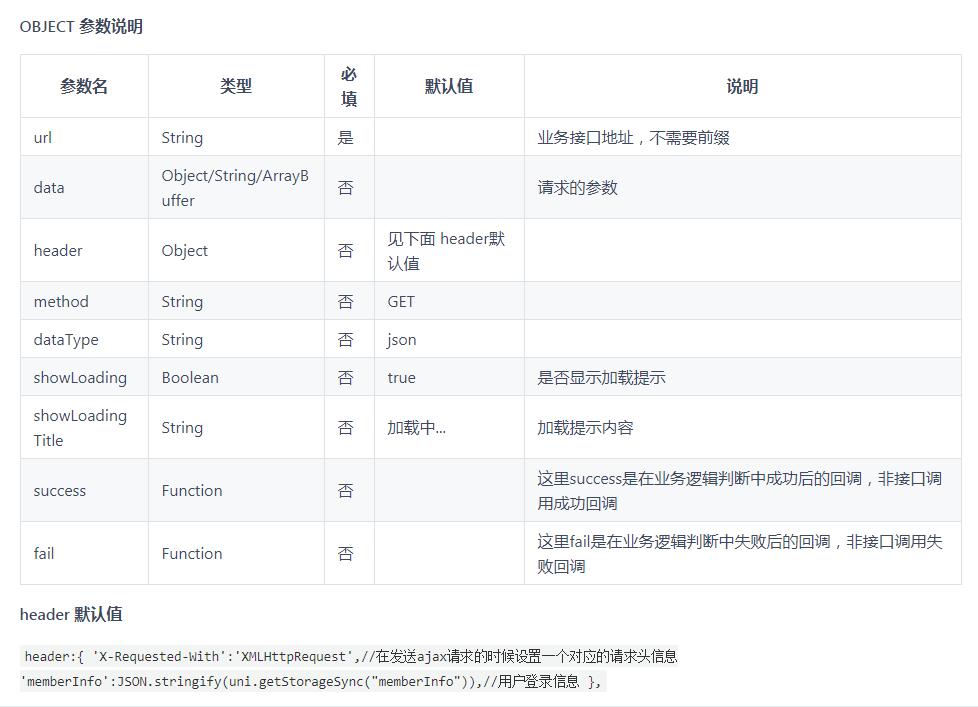
2,params.showLoading这个是控制加载动画的,默认开启的。
3,params.header.memberInfo(C端向S端发起header头)
这个是C端向S端传递用户的登录参数,包含:member_id,token。
后台我是用thinkphp3.2框架,我把用户检测的方法放到了一个基本类里,整个项目都继承这个类(除了注册,登录类和其它不需要验证用户登录的类)。
4,S端返回的数据
var status=res.data.status;//业务逻辑判断,比如数据不合法,必填字段验证等
var data=res.data.info;//数据,当status和loginStatus为0的时候,返回的是出错的提示内容(Sting)
var loginStatus=res.header.loginStatus;//是获取后面传递过来的登录状态。1为正常,0未异常;
var newToken=res.header.newToken;//S端每隔一定时间会生成新和token,这个时候C端要更新。这里会有一个问题,就是当并发请求的时候会有时间差,等下会在下面讲到;
5,登录状态判断
            //登录状态:登录异常
            if(loginStatus==0||loginStatus==""||loginStatus==undefined){
                uni.showModal({
                    title: data,
                    content: '',
                    success:function(){
                        uni.navigateTo({url:"../Registered/Registered"});
                    }
                });
                return;
            }
6,更新token
            //更新token
            if(newToken){
                var memberInfo=uni.getStorageSync("memberInfo");
                memberInfo.token=newToken;
                uni.setStorageSync("memberInfo",memberInfo);
            }
这里要说一下上面提到的并数据并发的时候会有token过期的问题,场景如下:
A在10点登录平台了(这里系统生成新的tokenA)
然后用户在10:31点击某个面页,这个页面有两个ajax请求,是并发的。比如第一个ajax请求banner图,第二个ajax请求数据列表
那么第一个ajax请求带的是tokenA。同时服务器接收到tokenA后,会生成新的tokenB(因为已经过30分钟了)。
同时第二个ajax请求也到达了(这时候带的token还是tokenA,因为是并发请求的,那时候还没有tokenB产生呢),那第二个ajax就会报错了,提示token不对
显示出现的问题大家也知道了,我在解决方案如下:
一个token过渡,即在一定时间(一般5分钟)内,tokenA,tokenB都可以用,即生成新的token,老的token要缓存一下。参考微信的access_token原理。
7,逻辑判断处理
            //服务端返回错误
            if(status!=1){
                if(params.fail){
                    params.fail(res.data);
                }else{
                    uni.showToast({
                        title: data,
                        duration: 3000,
                        "icon":"none"
                    });
                    return false;
                }
            }else{
                if(params.success){
                    params.success(data);
                }
            }
当status字段(业务逻辑判断字段,上面讲到了)不为0的时候如果用户定义了fail方法则调用用户的fail方法,没有定义fail则弹出提示框,并返回。
success也是。但success没有默认的处理机制,因为方法不知道你调用成功了要干什么啊,所以一般success一般都要定义的。
注意:
上面的success和fail方法是在业务逻辑判断后所用的回调,和uni.request定义的success,fail不一样地。
以上是根据我的项目需地写的方法,欢迎大家探讨,针对我的方法不合理之处提出指导。
附件是main.js和后端的一些代码,我打包传上来了。
提前背景:
我是主要做后台开发的,用的是thinkphp3.2.最近需要开发小程序。前台数据调用需要我写。在开发的过种中遇到如下问题:
1,如何在每次数据调用中在uni.request中带上用户登录信息。或者说有没有统一的方法。不用每个地方请求都要写上一些登录信息。这样看起来非常不好,使用也不爽;
2,前后端会话的token,如何规定。
3,整体项目中如何针对全局的出错做统一判断,如登录信息不存在。token失效等。
带着上面这些问题,专研了两天。最后分享一些我的解决方案;
问题1:最后使用了封装方法。即我把uni.request放到自己写的方法里,然后所有ajax请求都用自己写的封闭方法:
//接口地址前缀
Vue.prototype.serverUrl="http://xxx.com/index.php/Home";
//封装uni.request方法
Vue.prototype.uni_request=function(params){
    /*默认值*/
    params.showLoading=params.showLoading==undefined?true:params.showLoading;
    params.method=params.method==undefined?"GET":params.method;
    params.header=params.header==undefined?{'X-Requested-With':'XMLHttpRequest'}:params.header;
    //请求头里一定要带上用户登录信息,没得商量
    if(params.header.memberInfo==undefined||params.header.memberInfo==""){
        params.header.memberInfo=JSON.stringify({"member_id":uni.getStorageSync("memberInfo").member_id,"token":uni.getStorageSync("memberInfo").token});
    }
    /**/
    if(params.showLoading){
        uni.showLoading({mask:true,title:(params.showLoadingTitle?params.showLoadingTitle:"加载中...")});
    }
    uni.request({
        url: this.serverUrl+params.url,
        data:params.data,
        header:params.header,
        method:params.method,
        success: (res) => {
            var status=res.data.status;
            var data=res.data.info;
            var loginStatus=res.header.loginStatus;
            var newToken=res.header.newToken;
            //登录状态:登录异常
            if(loginStatus==0||loginStatus==""||loginStatus==undefined){
                uni.showModal({
                    title: data,
                    content: '',
                    success:function(){
                        uni.navigateTo({url:"../Registered/Registered"});
                    }
                });
                return;
            }
            //更新token
            if(newToken){
                var memberInfo=uni.getStorageSync("memberInfo");
                memberInfo.token=newToken;
                uni.setStorageSync("memberInfo",memberInfo);
            }
            //服务端返回错误
            if(status!=1){
                if(params.fail){
                    params.fail(res.data);
                }else{
                    uni.showToast({
                        title: data,
                        duration: 3000,
                        "icon":"none"
                    });
                    return false;
                }
            }else{
                if(params.success){
                    params.success(data);
                }
            }
        },
        complete: () => {
            if(params.showLoading){
                uni.hideLoading();
            }
        }
    });
}
以上代码放到main.js中
封装的方法调用:
比如我在首页调用banner:
this.uni_request({
    "url":'/Ad/index/?adid=7',
    success: (data) => {
        this.bannerData=data.data;
    },
});
现在我对代码分析讲解一下
1,方法传参按照uni.request的结构来的,传参也是用对象方式来传递的。
接口参数说明:
2,params.showLoading这个是控制加载动画的,默认开启的。
3,params.header.memberInfo(C端向S端发起header头)
这个是C端向S端传递用户的登录参数,包含:member_id,token。
后台我是用thinkphp3.2框架,我把用户检测的方法放到了一个基本类里,整个项目都继承这个类(除了注册,登录类和其它不需要验证用户登录的类)。
4,S端返回的数据
var status=res.data.status;//业务逻辑判断,比如数据不合法,必填字段验证等
var data=res.data.info;//数据,当status和loginStatus为0的时候,返回的是出错的提示内容(Sting)
var loginStatus=res.header.loginStatus;//是获取后面传递过来的登录状态。1为正常,0未异常;
var newToken=res.header.newToken;//S端每隔一定时间会生成新和token,这个时候C端要更新。这里会有一个问题,就是当并发请求的时候会有时间差,等下会在下面讲到;
5,登录状态判断
            //登录状态:登录异常
            if(loginStatus==0||loginStatus==""||loginStatus==undefined){
                uni.showModal({
                    title: data,
                    content: '',
                    success:function(){
                        uni.navigateTo({url:"../Registered/Registered"});
                    }
                });
                return;
            }
6,更新token
            //更新token
            if(newToken){
                var memberInfo=uni.getStorageSync("memberInfo");
                memberInfo.token=newToken;
                uni.setStorageSync("memberInfo",memberInfo);
            }
这里要说一下上面提到的并数据并发的时候会有token过期的问题,场景如下:
A在10点登录平台了(这里系统生成新的tokenA)
然后用户在10:31点击某个面页,这个页面有两个ajax请求,是并发的。比如第一个ajax请求banner图,第二个ajax请求数据列表
那么第一个ajax请求带的是tokenA。同时服务器接收到tokenA后,会生成新的tokenB(因为已经过30分钟了)。
同时第二个ajax请求也到达了(这时候带的token还是tokenA,因为是并发请求的,那时候还没有tokenB产生呢),那第二个ajax就会报错了,提示token不对
显示出现的问题大家也知道了,我在解决方案如下:
一个token过渡,即在一定时间(一般5分钟)内,tokenA,tokenB都可以用,即生成新的token,老的token要缓存一下。参考微信的access_token原理。
7,逻辑判断处理
            //服务端返回错误
            if(status!=1){
                if(params.fail){
                    params.fail(res.data);
                }else{
                    uni.showToast({
                        title: data,
                        duration: 3000,
                        "icon":"none"
                    });
                    return false;
                }
            }else{
                if(params.success){
                    params.success(data);
                }
            }
当status字段(业务逻辑判断字段,上面讲到了)不为0的时候如果用户定义了fail方法则调用用户的fail方法,没有定义fail则弹出提示框,并返回。
success也是。但success没有默认的处理机制,因为方法不知道你调用成功了要干什么啊,所以一般success一般都要定义的。
注意:
上面的success和fail方法是在业务逻辑判断后所用的回调,和uni.request定义的success,fail不一样地。
以上是根据我的项目需地写的方法,欢迎大家探讨,针对我的方法不合理之处提出指导。
附件是main.js和后端的一些代码,我打包传上来了。
收起阅读 »
uni-app 云开发
-
安装项目
vue create -p dcloudio/uni-preset-vue my-project -
APP.vue 增加代码,增加云操作
onLaunch: function() { console.log('App Launch'); if (!wx.cloud) { console.error('请使用 2.2.3 或以上的基础库以使用云能力'); } else { wx.cloud.init({ traceUser: true }) } } -
开通云开发
AppID 首次开通云环境后,需等待大约 10 分钟方可正常使用云 API,在此期间官方后台服务正在做准备服务,所以只需等待10分钟后再次调用即可。
VM54:1 cloud init error: Error: invalid scope 没有权限,请先开通云服务 // 报错信息 -
我建立了一个云项目作为参考,目录大概如下
-
查询数据库
在(开发者工具-数据库-集合名称) 上建立新的集合
参考云项目的 src/pages/databaseGuide的操作数据库的方法 -
云函数
在(开发者工具-云函数) 上新建云函数
参考云项目的 src/cloudfunctions操作函数的方法
-
安装项目
vue create -p dcloudio/uni-preset-vue my-project -
APP.vue 增加代码,增加云操作
onLaunch: function() { console.log('App Launch'); if (!wx.cloud) { console.error('请使用 2.2.3 或以上的基础库以使用云能力'); } else { wx.cloud.init({ traceUser: true }) } } -
开通云开发
AppID 首次开通云环境后,需等待大约 10 分钟方可正常使用云 API,在此期间官方后台服务正在做准备服务,所以只需等待10分钟后再次调用即可。
VM54:1 cloud init error: Error: invalid scope 没有权限,请先开通云服务 // 报错信息 -
我建立了一个云项目作为参考,目录大概如下
-
查询数据库
在(开发者工具-数据库-集合名称) 上建立新的集合
参考云项目的 src/pages/databaseGuide的操作数据库的方法 -
云函数
在(开发者工具-云函数) 上新建云函数
参考云项目的 src/cloudfunctions操作函数的方法

Android 和 IOS 佳博 蓝牙小票 、标签 打印模板
uni-app 跨平台app框架 佳博打印机蓝牙连接打印机模板
------你还在付费寻找蓝牙打印插件吗?深知现在很难找到开源的蓝牙打印插件,故开源给大家参考,有能力的同学可以自己深度封装-----
使用教程
直接整个项目导入自己电脑即可

兼容
原生Android、IOS和小程序
备注
项目中有开发文档,有能力的同学可以学习下,大家共同成长
uni-app 跨平台app框架 佳博打印机蓝牙连接打印机模板
------你还在付费寻找蓝牙打印插件吗?深知现在很难找到开源的蓝牙打印插件,故开源给大家参考,有能力的同学可以自己深度封装-----
使用教程
直接整个项目导入自己电脑即可
兼容
原生Android、IOS和小程序
备注
项目中有开发文档,有能力的同学可以学习下,大家共同成长
收起阅读 »
短视频+商城,缺前端 需有相关经验 有相关或成品展示的优先
短视频+商城 缺前端 需有相关经验 有相关或成品展示的优先
Q:
181751810
V
181751810
备注:社区
有相关项目优先,有成品作品展示的优先
短视频+商城 缺前端 需有相关经验 有相关或成品展示的优先
Q:
181751810
V
181751810
备注:社区
有相关项目优先,有成品作品展示的优先

uni.upload多文件上传测试180次均无法成功
uni.upload多文件上传测试180次均无法成功
文章大纲
- 问题来源
- 思路分析
- 测试经过
- 最终解决方案
问题来源
项目为了实现图片和视频多文件上传
思路分析
为了实现图片和视频多文件上传功能,经过5天,180次测试,我沿用以下三个思路进行测试。
1、我首先采用的是uni.uploadFile插件。(尝试接近50次次数)
2、其次采用的方法是原生数据连接方法,XMLHTTPrequest方法,失败(从50-100次测试)
3、发现依然失效,于是采用H5Plus,upLoader的方法,从100-180次测试,依然无效。
我最终面对自我信心缺失和无力的情况下,找到突破口,让后端重写多文件上传的功能,通过单文件依次上传,实现多文件上传功能。
为了纪念180次,一周的辛苦,写下文章,以免其他程序员也遇到同样的问题,和我一样白白做无用功。趁早让后端改代码,多文件变成单文件是最快的方式。
测试经过
核心问题在于,用Postman测试多文件上传功能是OK的,但是前端用的语法却失去效果。
所以我首先用的是uni.upLoadFile插件,看uni.upLoadFile插件文档,自己是不是对文档哪里理解错误,对于这个接口是否正确使用,语法有没有写错。因为这时候的报错是upload File fail ,
| 参数名 | 类型 | 必填 | 说明| 平台差异说明 |
| files | Array | 否 |需要上传的文件列表。使用 files 时,filePath 和 name 不生效 | 5 App |
1-30次测试,比较POSTman和Uniapp参数是否不同。比如检查file格式,相对还是绝对路径
30-50次测试,检查是否和内网相关联,因为我们公司是内网开发环境,后来发现并没有关系。
50次后,采用原生XmlHttpRequest写,依然无效。
80次后,采用uploader,我实在是精疲力竭,已经连续3天加班,每天从早测到晚,每次测试都毫无结果。
重新分析
所以我开始分析程序哪里出了了问题,再次判断分析为以下三个问题。
是否接口问题?用POSTMAN排除了。
是否语法问题?测了20次,派出了语法问题
是否方法问题?检查了前面两条路,(uni.uploade和xmlHttpRequest)我都发现死磕失败,最终走向第三条路——uploader
第100-130次:
fail to construct 'File:Iterator setter is not callable
这句话测试了30次,才发现是代码多了一个构造器new File
第130-180次
Uploader可以检测到上传过程中的数据问题,我检测了其中的数据,发现是已经上传了数据,但是结果却是失败的。
最终解决方案
我在180次测试结束后发现,多文件上传用uniapp多个路径始终走不通,得让后台配合把多文件接口改为单文件接口一对一传输才行。
这就是最终解决方案了。
uni.upload多文件上传测试180次均无法成功
文章大纲
- 问题来源
- 思路分析
- 测试经过
- 最终解决方案
问题来源
项目为了实现图片和视频多文件上传
思路分析
为了实现图片和视频多文件上传功能,经过5天,180次测试,我沿用以下三个思路进行测试。
1、我首先采用的是uni.uploadFile插件。(尝试接近50次次数)
2、其次采用的方法是原生数据连接方法,XMLHTTPrequest方法,失败(从50-100次测试)
3、发现依然失效,于是采用H5Plus,upLoader的方法,从100-180次测试,依然无效。
我最终面对自我信心缺失和无力的情况下,找到突破口,让后端重写多文件上传的功能,通过单文件依次上传,实现多文件上传功能。
为了纪念180次,一周的辛苦,写下文章,以免其他程序员也遇到同样的问题,和我一样白白做无用功。趁早让后端改代码,多文件变成单文件是最快的方式。
测试经过
核心问题在于,用Postman测试多文件上传功能是OK的,但是前端用的语法却失去效果。
所以我首先用的是uni.upLoadFile插件,看uni.upLoadFile插件文档,自己是不是对文档哪里理解错误,对于这个接口是否正确使用,语法有没有写错。因为这时候的报错是upload File fail ,
| 参数名 | 类型 | 必填 | 说明| 平台差异说明 |
| files | Array | 否 |需要上传的文件列表。使用 files 时,filePath 和 name 不生效 | 5 App |
1-30次测试,比较POSTman和Uniapp参数是否不同。比如检查file格式,相对还是绝对路径
30-50次测试,检查是否和内网相关联,因为我们公司是内网开发环境,后来发现并没有关系。
50次后,采用原生XmlHttpRequest写,依然无效。
80次后,采用uploader,我实在是精疲力竭,已经连续3天加班,每天从早测到晚,每次测试都毫无结果。
重新分析
所以我开始分析程序哪里出了了问题,再次判断分析为以下三个问题。
是否接口问题?用POSTMAN排除了。
是否语法问题?测了20次,派出了语法问题
是否方法问题?检查了前面两条路,(uni.uploade和xmlHttpRequest)我都发现死磕失败,最终走向第三条路——uploader
第100-130次:
fail to construct 'File:Iterator setter is not callable
这句话测试了30次,才发现是代码多了一个构造器new File
第130-180次
Uploader可以检测到上传过程中的数据问题,我检测了其中的数据,发现是已经上传了数据,但是结果却是失败的。
最终解决方案
我在180次测试结束后发现,多文件上传用uniapp多个路径始终走不通,得让后台配合把多文件接口改为单文件接口一对一传输才行。
这就是最终解决方案了。
收起阅读 »
输入框模糊搜索
插件预览图
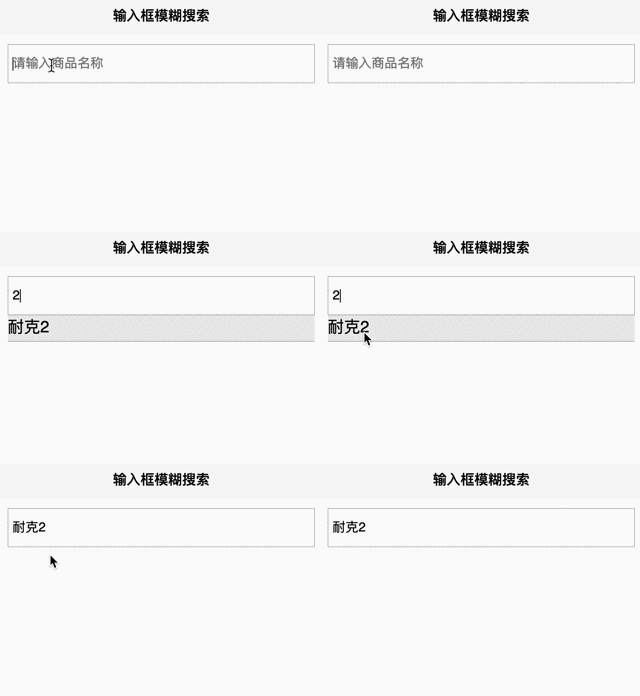
使用教程
1.插件代码拷贝
- 下载后把components目录下inputSearch.vue文件拷贝到自己项目目录下
2.插件全局配置
- 在项目里main.js中配置如下代码
import inputSearch from './components/inputSearch.vue'

Vue.component('inputSearch', inputSearch)
3.插件使用
- vue页面使用
<template>
    <view class="content">
        <inputSearch :dataSource="dataSource" @select="handleChange" placeholder="请输入商品名称" />
    </view>
</template>

<script>
    export default {
        data() {
            return {
                dataSource: [{
                        id: 1,
                        name: '耐克1'
                    },
                    {
                        id: 2,
                        name: '耐克2'
                    }
                ],
            };
        },
        methods: {
            //用户点击获取的数据
            handleChange(data) {
                console.log(data)
            }
        }
    }
</script>

<style lang="scss">
    .content {
        padding:20upx;
    }
</style>
兼容性
uni-app项目中使用都兼容
样式可以自己在组件里面调整
插件预览图
使用教程
1.插件代码拷贝
- 下载后把components目录下inputSearch.vue文件拷贝到自己项目目录下
2.插件全局配置
- 在项目里main.js中配置如下代码
import inputSearch from './components/inputSearch.vue'

Vue.component('inputSearch', inputSearch)
3.插件使用
- vue页面使用
<template>
    <view class="content">
        <inputSearch :dataSource="dataSource" @select="handleChange" placeholder="请输入商品名称" />
    </view>
</template>

<script>
    export default {
        data() {
            return {
                dataSource: [{
                        id: 1,
                        name: '耐克1'
                    },
                    {
                        id: 2,
                        name: '耐克2'
                    }
                ],
            };
        },
        methods: {
            //用户点击获取的数据
            handleChange(data) {
                console.log(data)
            }
        }
    }
</script>

<style lang="scss">
    .content {
        padding:20upx;
    }
</style>
兼容性
uni-app项目中使用都兼容
样式可以自己在组件里面调整
收起阅读 »
An NoticeBar 通告栏 上下滚动 循环滚动通告栏 发布啦 插件市场
向上滚动通告栏 插件市场 下载地址 https://ext.dcloud.net.cn/plugin?id=1036
An NoticeBar 通告栏 上下滚动 循环滚动通告栏
向上滚动通告栏 插件市场 下载地址 https://ext.dcloud.net.cn/plugin?id=1036
An NoticeBar 通告栏 上下滚动 循环滚动通告栏

video组件,不定时的卡
内容是一些直播平台的m3u8,在全屏和不全屏播放的时候,有时候会进入缓存,然后,不自动缓存,必须重新退出在打开,不定时的出现这种情况。
内容是一些直播平台的m3u8,在全屏和不全屏播放的时候,有时候会进入缓存,然后,不自动缓存,必须重新退出在打开,不定时的出现这种情况。

动态判断权限
最近做unapp遇到手机授权问题,查看官网竟然什么都没写,只给一个插件市场的连接。引入到代码了,完美运行。过一段时间发现竟然部分手机不支持。一步步排查问题,发现竟然是官方提供的方法plus.android.requestPermissions有问题,部分手机调用这个授权方法一直显示已允许授权。后来多亏有高人指点,用原生插件解决问题,插件已上传附件中,使用方法,1项目中集成插件 2 代码中应用 var reqsdkwx = uni.requireNativePlugin('Yany-PermissionReqWX');reqsdkwx.checkPermissions(["android.permission.CAMERA","android.permission.RECORD_AUDIO"], function(res){});
最近做unapp遇到手机授权问题,查看官网竟然什么都没写,只给一个插件市场的连接。引入到代码了,完美运行。过一段时间发现竟然部分手机不支持。一步步排查问题,发现竟然是官方提供的方法plus.android.requestPermissions有问题,部分手机调用这个授权方法一直显示已允许授权。后来多亏有高人指点,用原生插件解决问题,插件已上传附件中,使用方法,1项目中集成插件 2 代码中应用 var reqsdkwx = uni.requireNativePlugin('Yany-PermissionReqWX');reqsdkwx.checkPermissions(["android.permission.CAMERA","android.permission.RECORD_AUDIO"], function(res){});
收起阅读 »
官方把这个集成到HBX里面。。。。。。
官方把这个集成到HBX里面。。。。。。 https://ext.dcloud.net.cn/plugin?id=1035
肯定是趋势,也是必然,现在敲代码太累了。。。
官方把这个集成到HBX里面。。。。。。 https://ext.dcloud.net.cn/plugin?id=1035
肯定是趋势,也是必然,现在敲代码太累了。。。


